This interactive demo was created free with Storylane in 2 minutes. Create your own demo
Start free
All Tutorials /Wrike

How to Use Wrike for Project Management

Updated on:
June 5, 2026
By:
Madhav Bhandari
Use this interactive demo to learn how to manage projects, tasks, and team collaboration in Wrike.

Quick summary

Wrike is a project management platform that lets teams organize work into spaces, projects, and tasks with built-in tools for assignment, scheduling, and collaboration. This walkthrough covers everything from creating your first task to sharing progress with clients using Gantt charts and comments.


Steps

  1. Open your first workspace to access all your projects and team collaboration in one place.
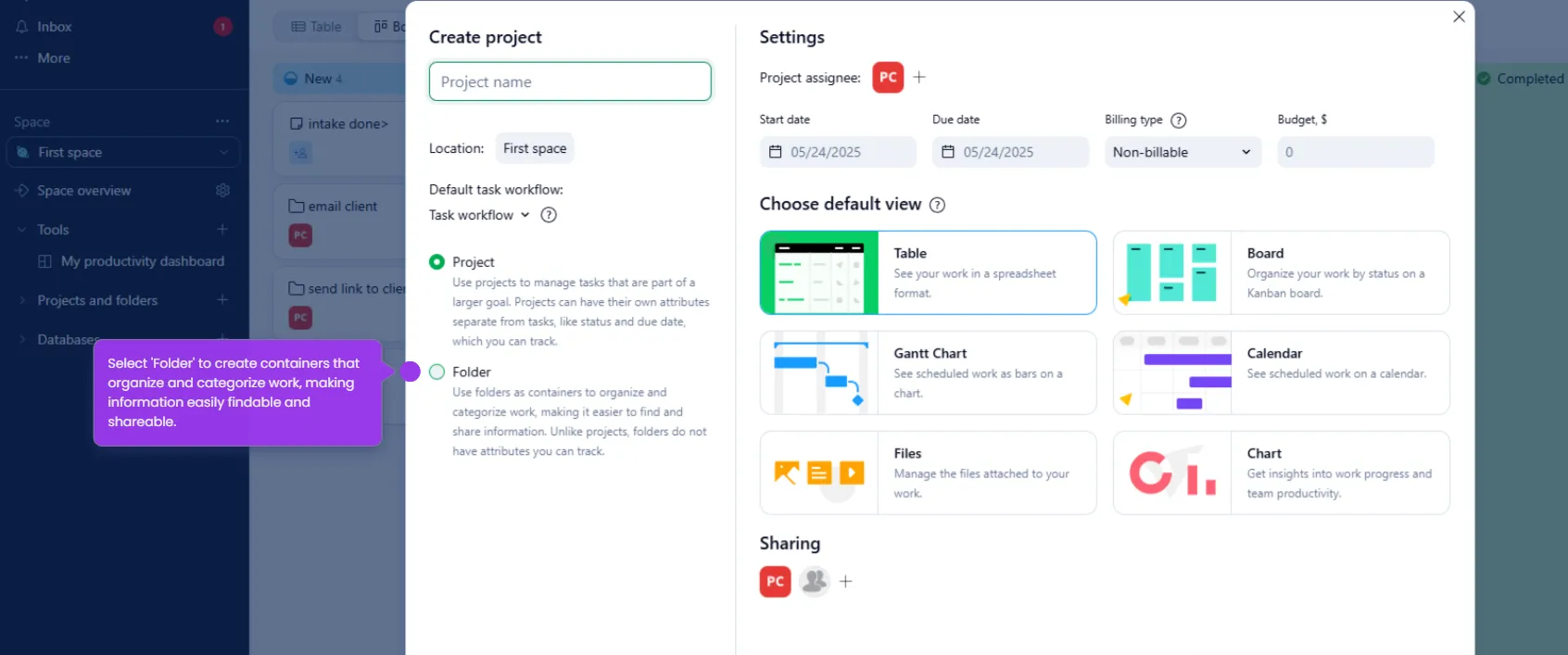
  2. Inside the space, create Projects and Folders to organize different initiatives or categories.
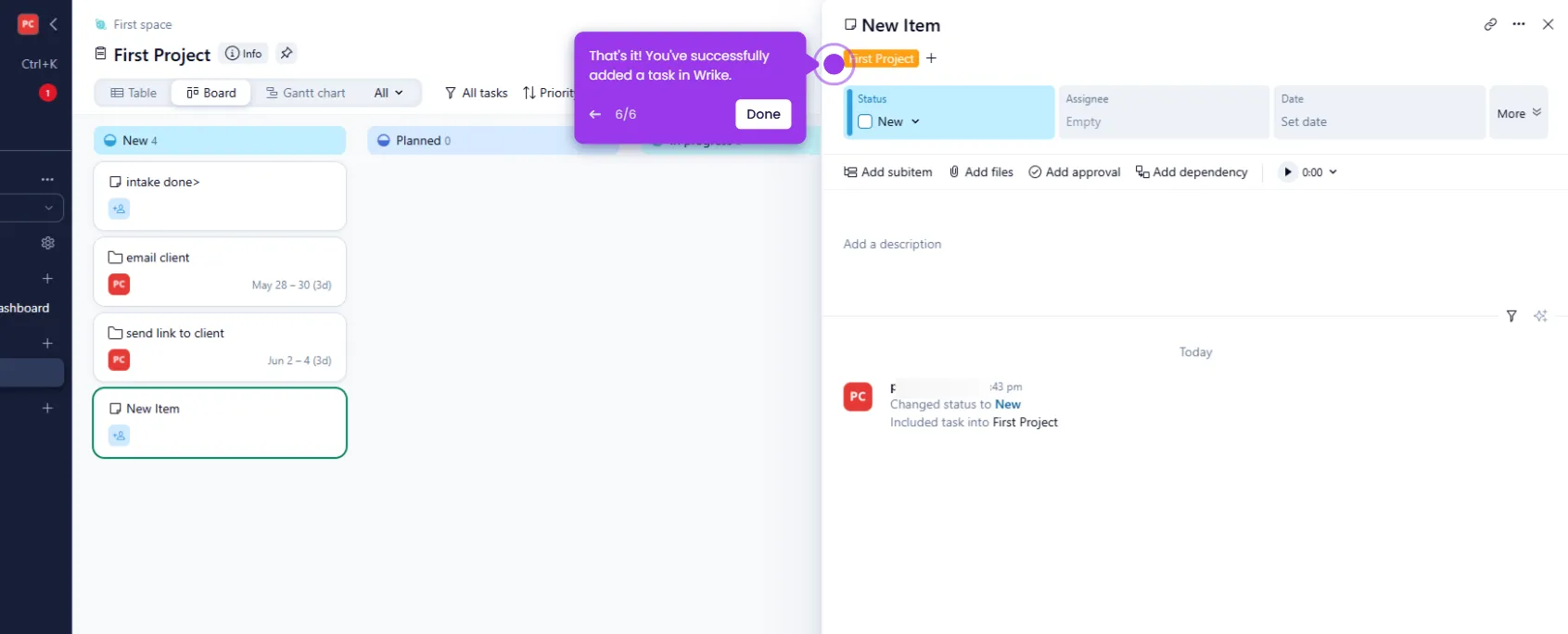
  3. Set up your first task to start breaking down project deliverables.
  4. Use Add subitem to break complex work into subtasks for better progress tracking.
  5. Create a subtask to manage specific components of a project, such as an email client.
  6. Assign team members to tasks to establish clear ownership and responsibility.
  7. Click Save to confirm task details, notify assignees, and update your project plan.
  8. Sort tasks by Date to visualize upcoming deadlines across your project.
  9. Click + Item to expand your project with additional tasks for comprehensive coverage.
  10. Customize task details to match your team's specific workflow needs.
  11. Add another task using + Item to build out your complete project roadmap.
  12. Click All to view every task and get a full overview of your project status.
  13. Switch to Gantt chart view to visualize project timelines and task dependencies.
  14. Adjust timeline dependencies directly on the Gantt chart to optimize your project schedule.
  15. Add comments to tasks to facilitate discussion and collect feedback on deliverables.
  16. Click Send to post your comment and keep stakeholders informed of project progress.
  17. Mention specific users in comments to ensure they receive targeted notifications.
  18. Click Add files to attach relevant documents and provide context for your team.
  19. Click Share to send a project progress link to clients for transparent communication.
  20. Click Copy link to generate a shareable project link for quick access across teams.
📌 Why this matters

Wrike is an enterprise-grade project management platform that centralizes task creation, team assignment, and deadline tracking in a single workspace. Teams that need to manage complex, multi-stakeholder projects benefit from features like Gantt chart scheduling, subtask hierarchies, and real-time commenting that keep everyone aligned without switching tools. The ability to share project links and attach files directly inside tasks makes client communication and cross-team handoffs faster and more transparent. For organizations evaluating work management software, Wrike's combination of flexible task structures and built-in collaboration tools makes it a strong alternative to spreadsheets or siloed project apps.
Your product deserves an interactive demo
Start free
Similar Articles
Wrike

How to Undo in Wrike

Madhav Bhandari
Director of Marketing @ Storylane
Wrike

How to Create a Folder in Wrike

Madhav Bhandari
Director of Marketing @ Storylane
Wrike

How to Add a Task in Wrike

Madhav Bhandari
Director of Marketing @ Storylane
No items found.
Platform
Interactive Demos
Sandbox Demos
Hubs
RepX
Integrations
Solutions
Product Marketers
Growth & Demand Gen
Sales Reps & AEs
Presales & SEs
Customer Success
Product Managers
Customers
Demo Showcase
Customer Stories
Finer Demos Club
Features
Demo Signals
Personalization
Deal Intelligence
Resources
Blog
The Plot
Tutorials
Help Docs
What’s New
Demo Dundies
Company
Careers
Pricing
Partners
Contact
Trust Center
Backed by
Chrome Extension Icon
Chrome extension
Download
Desktop app
Download
Built in San Francisco Bay Area - ©2026 Storylane
Privacy PolicyTerms & Conditions
X Corp (formerly Twitter)LinkedIn
This website uses cookies to ensure you get the best experience on our website. Learn More
Got it
This website uses cookies to ensure you get the best experience on our website. Learn More
Got it