This interactive demo was created free with Storylane in 2 minutes. Create your own demo
Start free
All Tutorials /Zoho

How To Use Zoho Inventory

Updated on:
June 5, 2026
By:
Madhav Bhandari
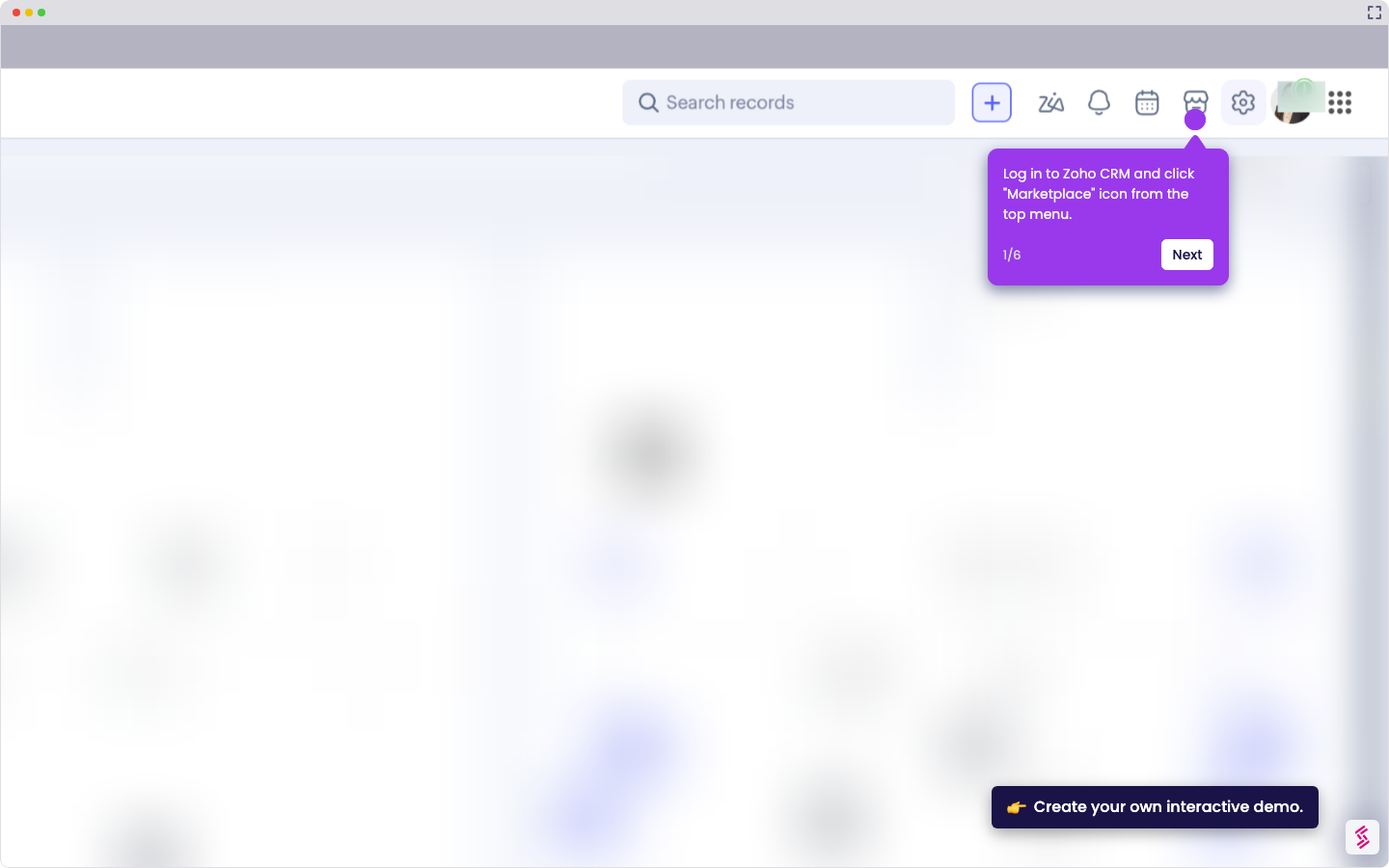
Follow this interactive demo to learn how to use Zoho inventory.
  1. Sign in to Zoho.
  2. Enter your email.
  3. Click on “Inventory”.
  4. Open your Items section and click "Items".
  5. Type in your product.
  6. Click on the type of item.
  7. Categorize your item.
  8. Select your item's brand and manufacturer.
  9. Select the unit of your item.
  10. Add your custom Stock Keeping Unit.
  11. Input your sticker price.
  12. Choose "Inventory Asset" as an account.
  13. Use FIFO method to ensure the oldest stock is valued and sold first.
  14. Fill in proper dimensions for your item.
  15. Select the appropriate weight for your product.
  16. Enter in your item’s weight.
  17. Finalize all updates and click “Save”.

📌 Why this matters

Setting up your inventory items properly unlocks automated stock tracking, reorder alerts, and accurate financial reporting across your entire business operation. The real advantage comes from establishing consistent product data from the start—when your inventory connects seamlessly with sales orders, purchase orders, and accounting records, you eliminate manual data entry errors that typically plague growing businesses. This foundation ensures your inventory costs flow correctly through your books and you never oversell items you don't actually have in stock.

Your product deserves an interactive demo
Start free
Similar Articles
Zoho

How To Integrate MySQL With Zoho C RM

Madhav Bhandari
Director of Marketing @ Storylane
Zoho

How To Integrate Google Sheets With Zoho CRM

Madhav Bhandari
Director of Marketing @ Storylane
Zoho

How To Integrate ClickUp With Zoho CRM

Madhav Bhandari
Director of Marketing @ Storylane
No items found.
Platform
Interactive Demos
Sandbox Demos
Hubs
RepX
Integrations
Solutions
Product Marketers
Growth & Demand Gen
Sales Reps & AEs
Presales & SEs
Customer Success
Product Managers
Customers
Demo Showcase
Customer Stories
Finer Demos Club
Features
Demo Signals
Personalization
Deal Intelligence
Resources
Blog
The Plot
Tutorials
Help Docs
What’s New
Demo Dundies
Company
Careers
Pricing
Partners
Contact
Trust Center
Backed by
Chrome Extension Icon
Chrome extension
Download
Desktop app
Download
Built in San Francisco Bay Area - ©2026 Storylane
Privacy PolicyTerms & Conditions
X Corp (formerly Twitter)LinkedIn
This website uses cookies to ensure you get the best experience on our website. Learn More
Got it
This website uses cookies to ensure you get the best experience on our website. Learn More
Got it