This interactive demo was created free with Storylane in 2 minutes. Create your own demo
Start free
All Tutorials /Constant Contact

How to Add a Button to Constant Contact Campaign Emails

Updated on:
June 5, 2026
By:
Madhav Bhandari
Use this interactive demo to learn how to insert a clickable button into your campaign email.

Quick summary

Adding a button to a Constant Contact campaign email lets you create a clear call-to-action that drives clicks directly to any web page or link. This step-by-step process covers dragging the button block into your email, configuring its link, and customizing its appearance — all within the email editor.


Steps

  1. In the left-side panel, select 'Button' from the Build section, then drag it into the main workspace.
  2. Click the button block in the workspace to select it and proceed to configuration.
  3. Return to the left-side panel and click the 'Add Link' button.
  4. Choose the type of link you want to attach to the button (e.g., Web Page).
  5. Enter a unique display text into the provided input field for the button label.
  6. Click the 'Link URL' tab and type in the destination URL you want the button to open.
  7. Click 'Insert' to apply the link to the button.
  8. Customize the button's appearance by adjusting Button Color, Button Radius, border, and other available style settings.
  9. Use the menu bar above the workspace to edit the display text style, including font, size, and format.
  10. Once all settings are configured, the custom button will be successfully added to your Constant Contact campaign email.
📌 Why this matters

Adding a clickable button to a Constant Contact campaign email is one of the most effective ways to boost email engagement and drive traffic to a specific destination. A well-placed, clearly labeled call-to-action button removes friction for subscribers, making it easier for them to take the next step — whether visiting a website, registering for an event, or making a purchase. Constant Contact's drag-and-drop email editor makes it straightforward to insert, link, and fully customize button elements without any coding knowledge. Mastering this feature helps marketers create more conversion-focused email campaigns that deliver measurable results.
Your product deserves an interactive demo
Start free
Similar Articles
Constant Contact

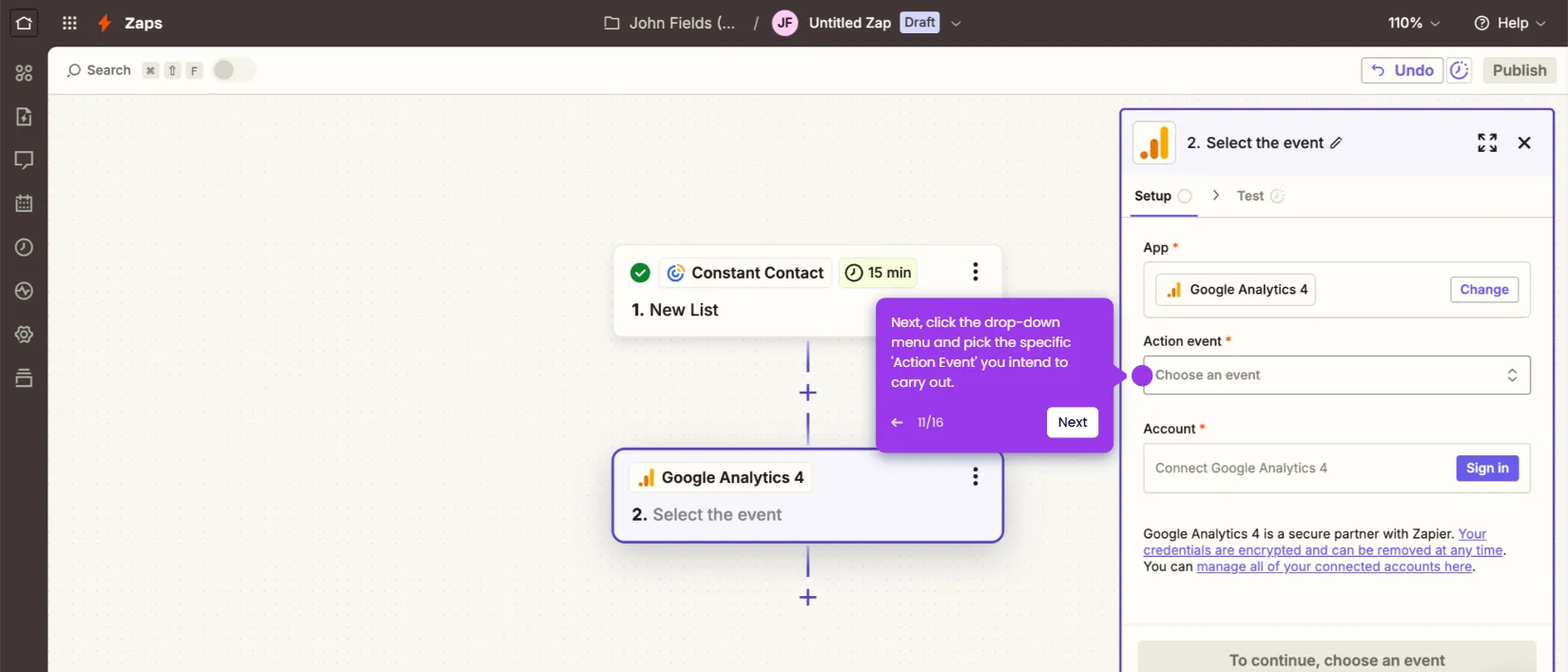
How to Integrate Constant Contact with Google Analytics

Madhav Bhandari
Director of Marketing @ Storylane
Constant Contact

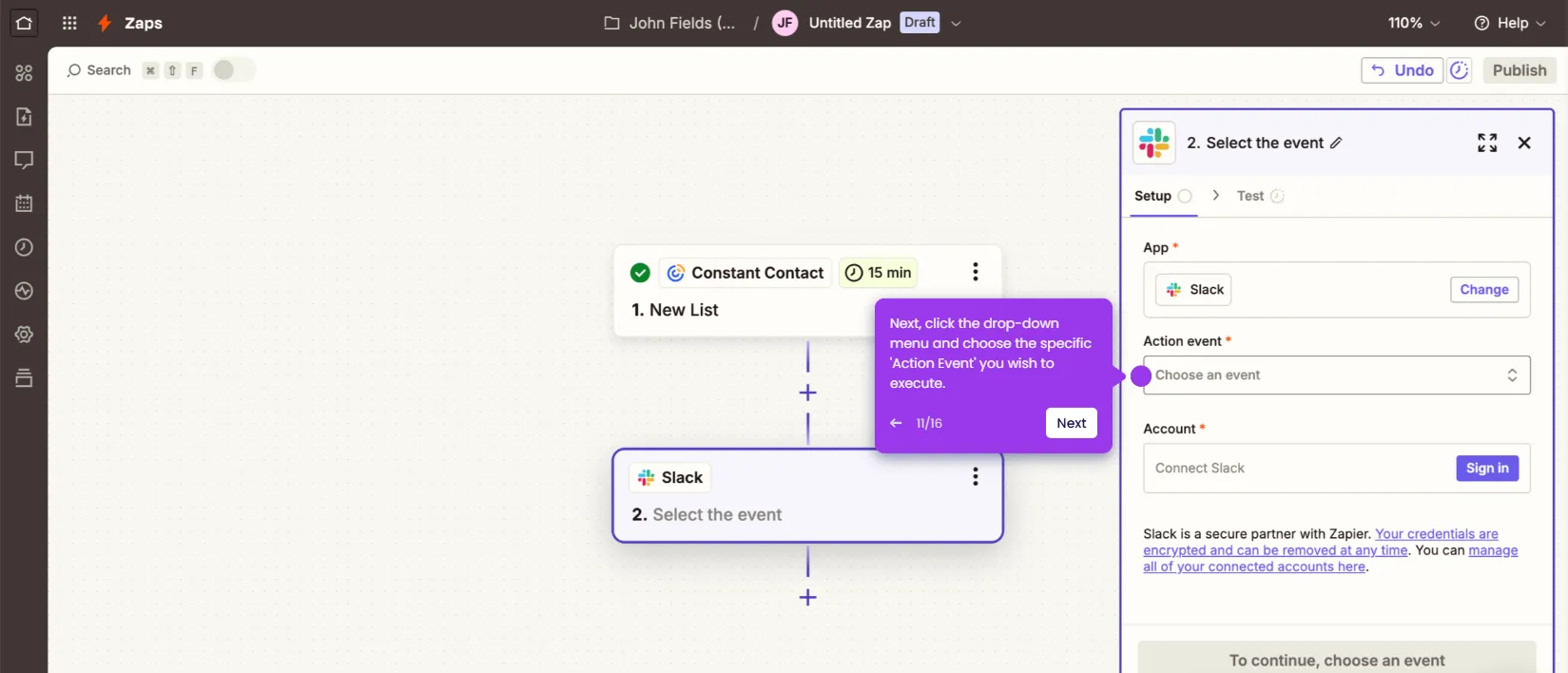
How to Integrate Constant Contact with Slack

Madhav Bhandari
Director of Marketing @ Storylane
Constant Contact

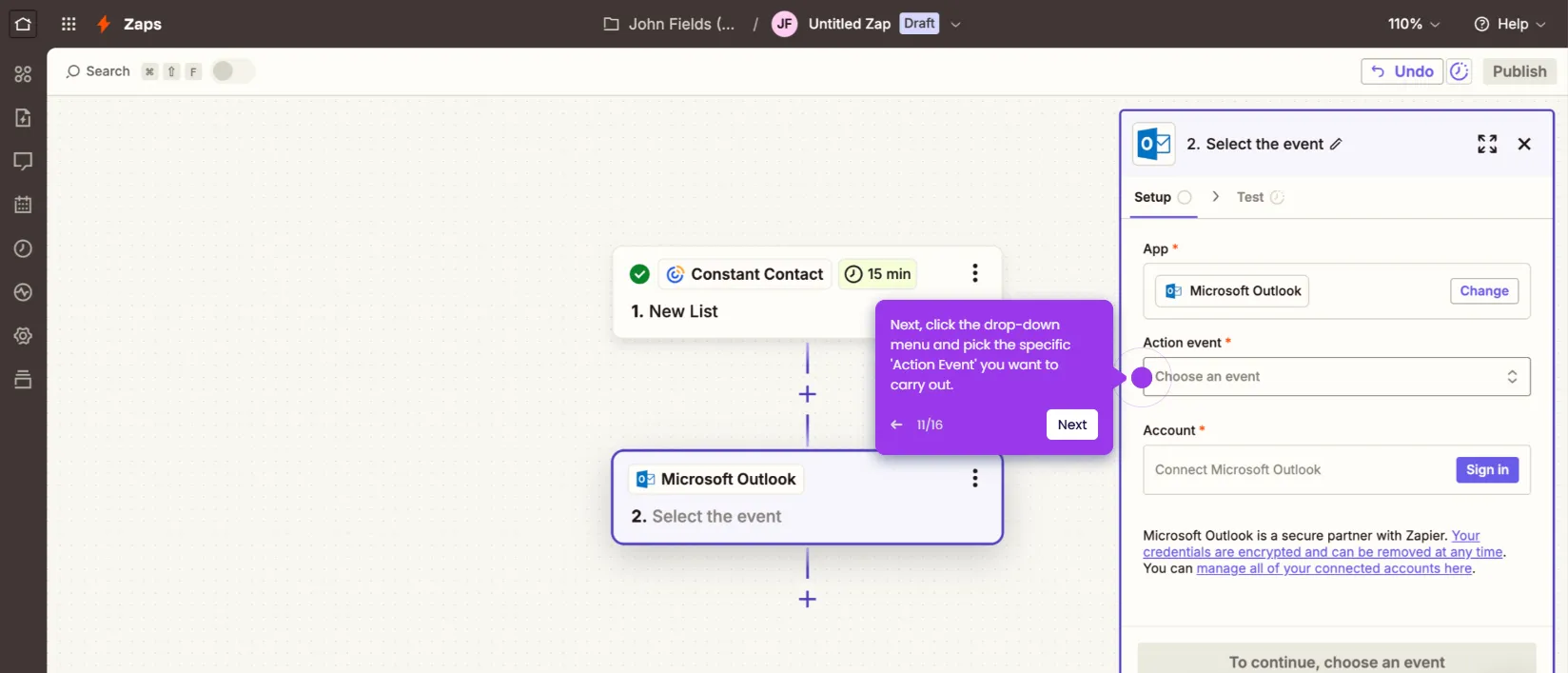
How to Integrate Constant Contact with Microsoft Outlook

Madhav Bhandari
Director of Marketing @ Storylane
No items found.
Platform
Interactive Demos
Sandbox Demos
Hubs
RepX
Integrations
Solutions
Product Marketers
Growth & Demand Gen
Sales Reps & AEs
Presales & SEs
Customer Success
Product Managers
Customers
Demo Showcase
Customer Stories
Finer Demos Club
Features
Demo Signals
Personalization
Deal Intelligence
Resources
Blog
The Plot
Tutorials
Help Docs
What’s New
Demo Dundies
Company
Careers
Pricing
Partners
Contact
Trust Center
Backed by
Chrome Extension Icon
Chrome extension
Download
Desktop app
Download
Built in San Francisco Bay Area - ©2026 Storylane
Privacy PolicyTerms & Conditions
X Corp (formerly Twitter)LinkedIn
This website uses cookies to ensure you get the best experience on our website. Learn More
Got it
This website uses cookies to ensure you get the best experience on our website. Learn More
Got it