This interactive demo was created free with Storylane in 2 minutes. Create your own demo
Start free
All Tutorials /Miro

How to Add a Frame in Miro

Updated on:
June 5, 2026
By:
Madhav Bhandari
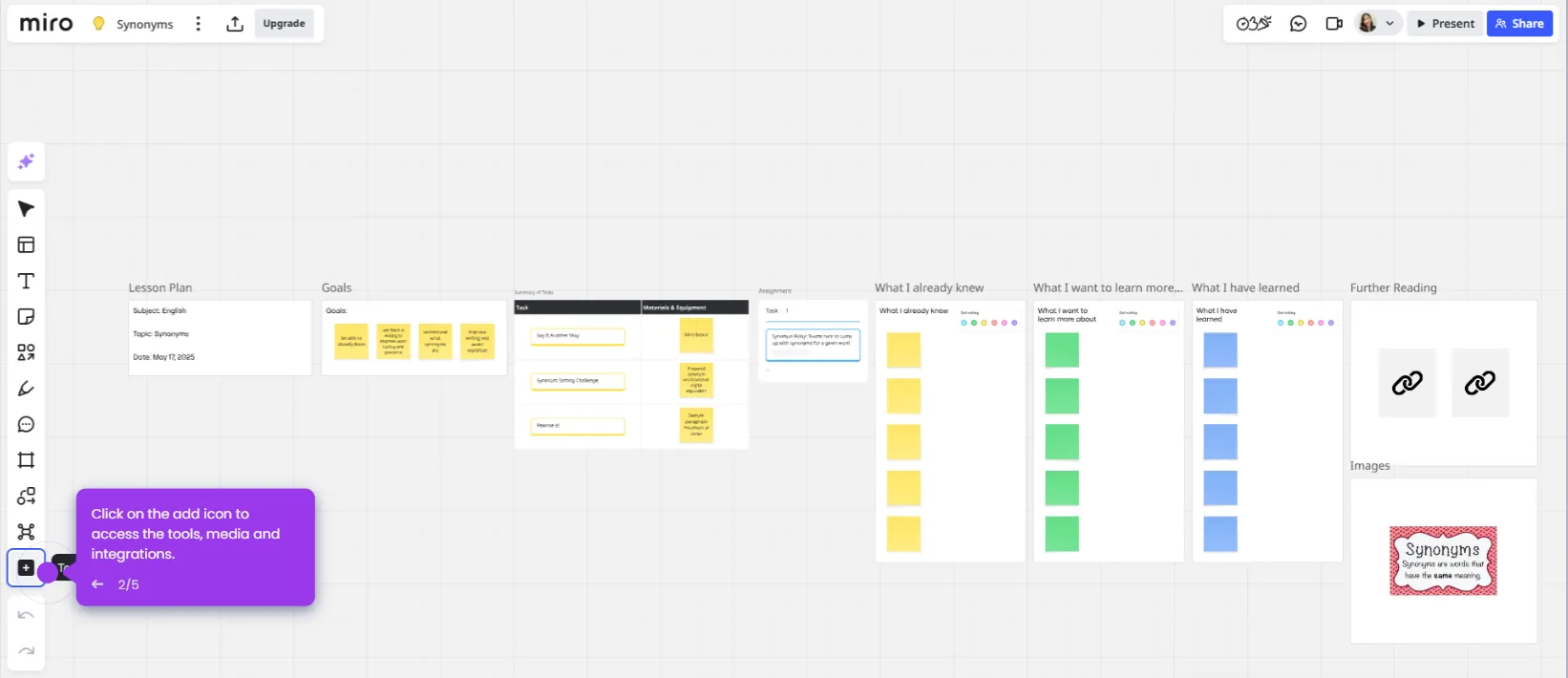
Use this interactive demo to learn how to create and size a frame on your Miro board.

Quick summary

Adding a frame in Miro lets you organize and present content in structured sections on your collaborative whiteboard. Use the Frame tool from the left toolbar to instantly define, resize, and arrange visual containers around your board content.


Steps

  1. Open your Miro board from the dashboard.
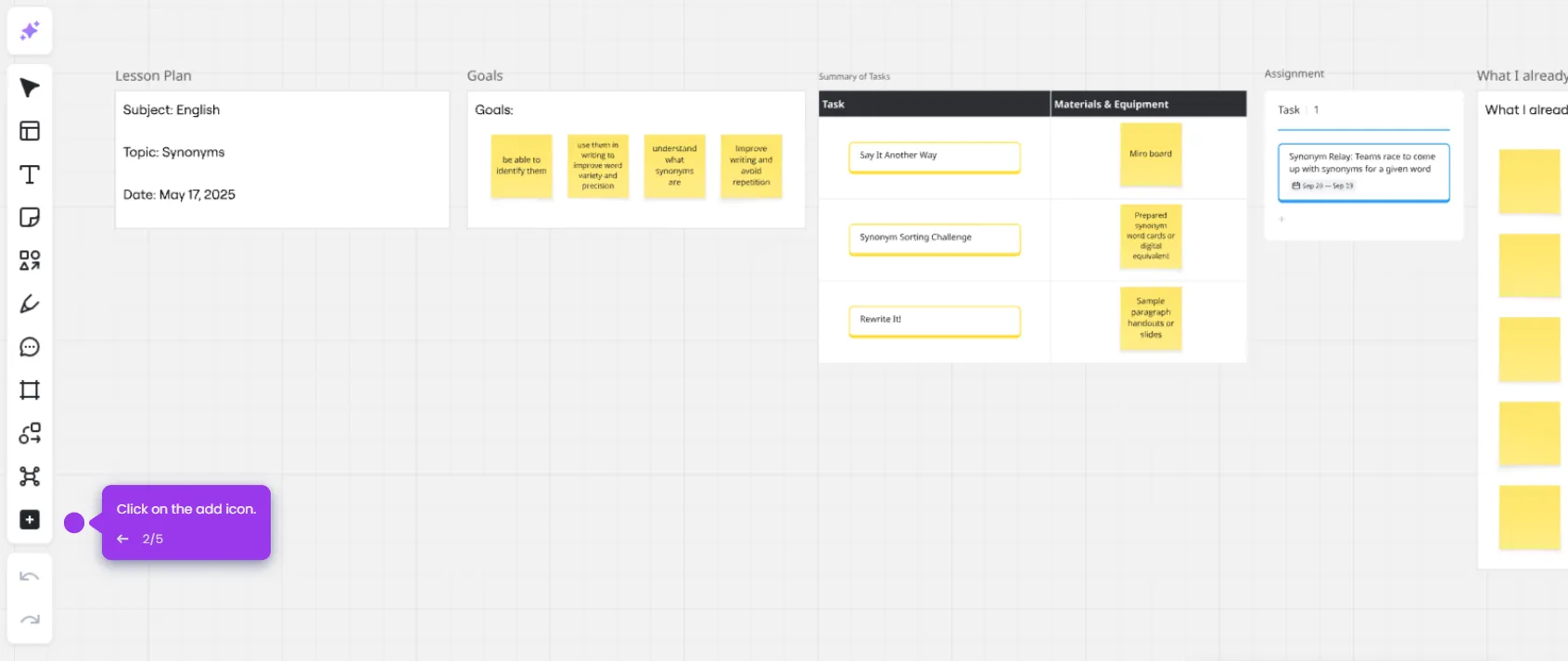
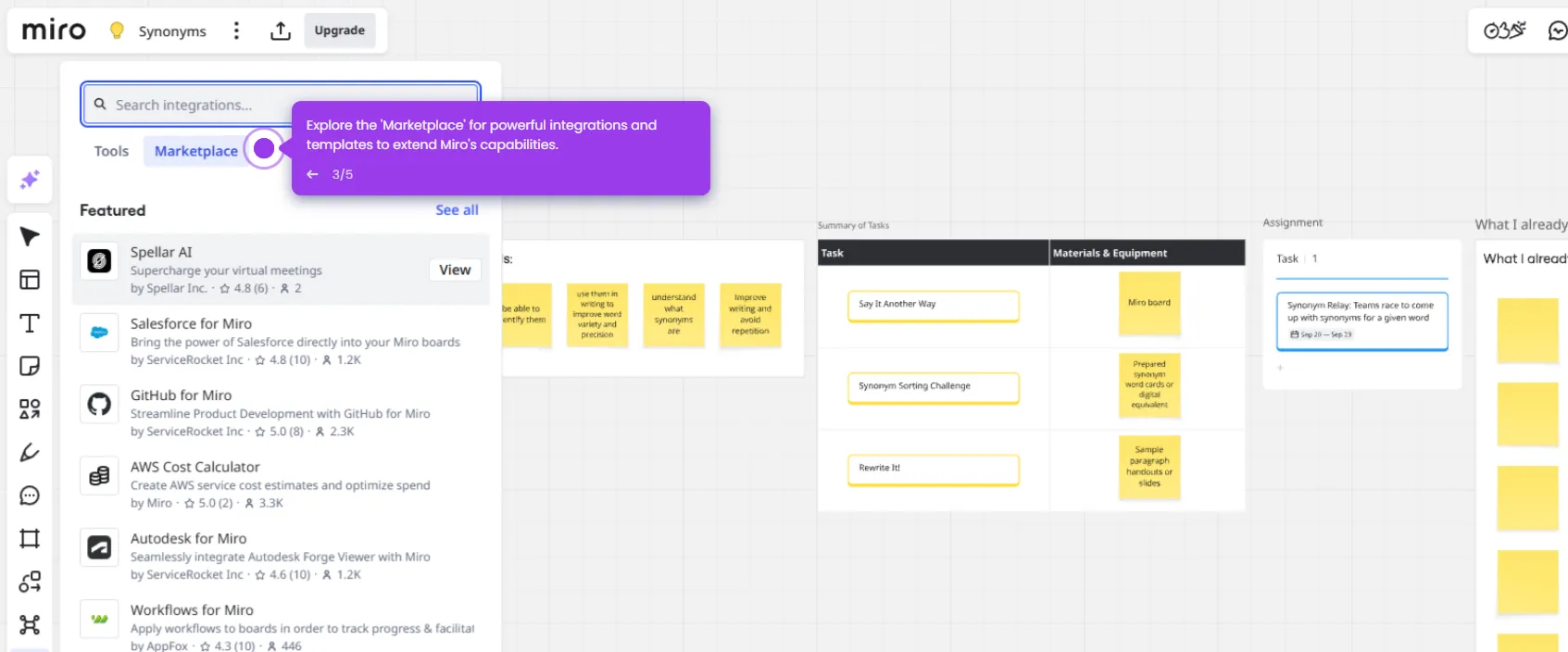
  2. From the left toolbar, click the Frame icon.
  3. Select your desired frame template from the available options.
  4. Click and drag on the board to create your frame, then adjust its size as needed to contain your content.
📌 Why this matters

Frames in Miro are essential for structuring collaborative whiteboards — they let teams organize content into clearly defined sections, making it easier to present ideas, run workshops, and navigate complex projects. By using the Frame tool, users can instantly create resizable containers that group related content and keep boards visually clean. This feature is especially valuable for remote teams who rely on Miro for brainstorming, sprint planning, and design reviews. Mastering frames helps teams work faster and present more professionally inside the Miro platform.
Your product deserves an interactive demo
Start free
Similar Articles
Miro

Miro Google Integration

Madhav Bhandari
Director of Marketing @ Storylane
Miro

Google Meet Miro Integration

Madhav Bhandari
Director of Marketing @ Storylane
Miro

Miro ChatGPT Integration

Madhav Bhandari
Director of Marketing @ Storylane
No items found.
Platform
Interactive Demos
Sandbox Demos
Hubs
RepX
Integrations
Solutions
Product Marketers
Growth & Demand Gen
Sales Reps & AEs
Presales & SEs
Customer Success
Product Managers
Customers
Demo Showcase
Customer Stories
Finer Demos Club
Features
Demo Signals
Personalization
Deal Intelligence
Resources
Blog
The Plot
Tutorials
Help Docs
What’s New
Demo Dundies
Company
Careers
Pricing
Partners
Contact
Trust Center
Backed by
Chrome Extension Icon
Chrome extension
Download
Desktop app
Download
Built in San Francisco Bay Area - ©2026 Storylane
Privacy PolicyTerms & Conditions
X Corp (formerly Twitter)LinkedIn
This website uses cookies to ensure you get the best experience on our website. Learn More
Got it
This website uses cookies to ensure you get the best experience on our website. Learn More
Got it