This interactive demo was created free with Storylane in 2 minutes. Create your own demo
Start free
All Tutorials /Xero

How to Add a Sick Leave Request in Xero

Updated on:
June 5, 2026
By:
Madhav Bhandari
Use this interactive demo to learn how to submit and approve a sick leave request in Xero Payroll.

Quick summary

Xero Payroll lets managers submit and approve sick leave requests directly from the Leave module in just a few clicks. This step-by-step process ensures employee sick leave is accurately recorded and approved without leaving the Xero dashboard.


Steps

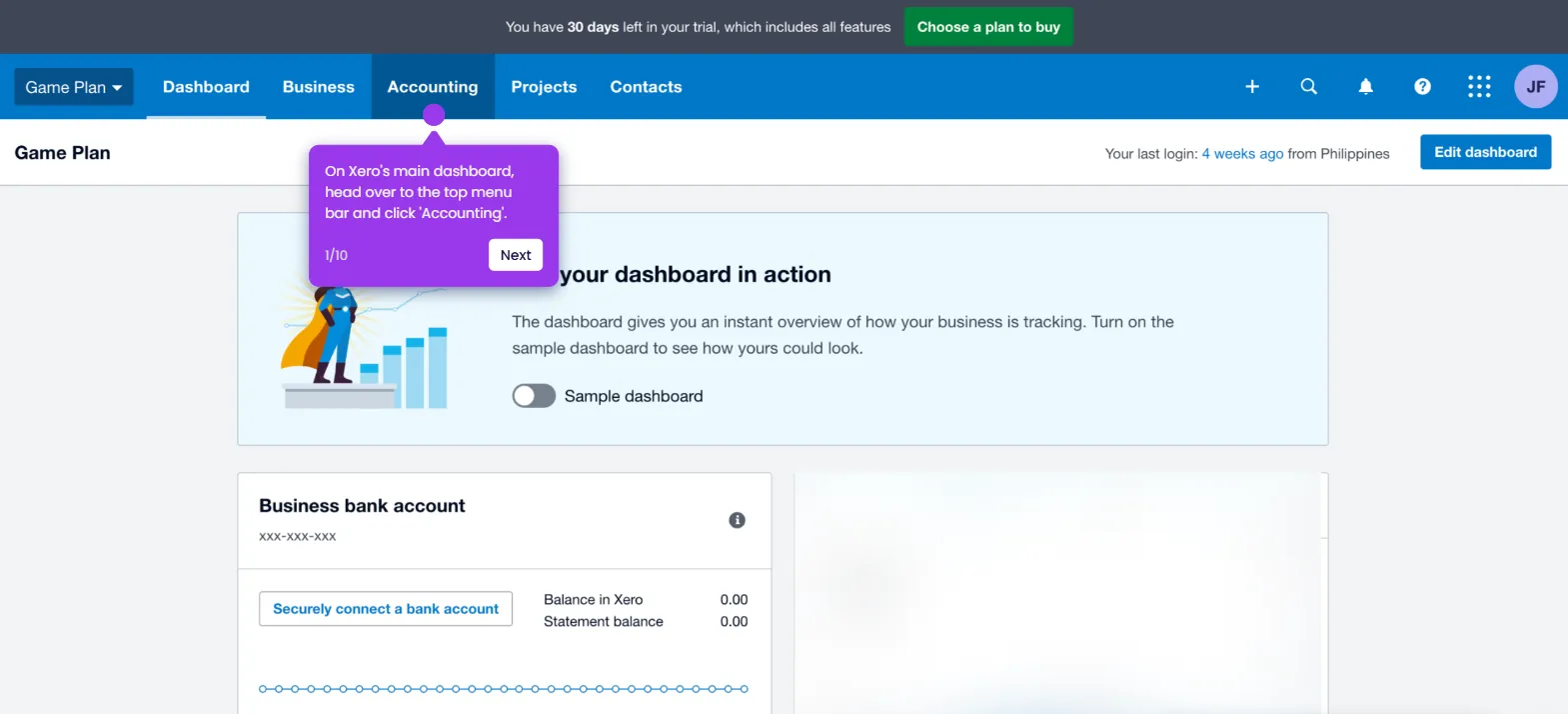
  1. On Xero's main dashboard, navigate to the top menu bar and click Payroll.
  2. Choose Leave from the dropdown list of options.
  3. Click New Request in the top-right corner of the Leave page.
  4. Select Leave as the request type to proceed.
  5. Search for the employee's name and select it from the suggested results.
  6. Tap the Leave Type menu to open the available leave categories.
  7. Pick Sick Leave from the given choices.
  8. Fill out all required input fields, including the description and date of the leave.
  9. Review your entries and click Approve to submit the request.
  10. The sick leave request is now added and approved in Xero Payroll.
📌 Why this matters

Managing employee sick leave manually is time-consuming and error-prone. Xero Payroll's built-in Leave module allows HR managers and payroll administrators to submit, categorize, and approve sick leave requests in seconds — all from one centralized dashboard. Accurate leave tracking directly within payroll software reduces compliance risk and ensures employees' entitlements are correctly recorded. For businesses using Xero, this streamlined sick leave workflow eliminates paperwork and keeps payroll data consistent and audit-ready.
Your product deserves an interactive demo
Start free
Similar Articles
Xero

How to Unlock Accounts in Xero When the Password is Forgotten

Madhav Bhandari
Director of Marketing @ Storylane
Xero

How to Record an Overpayment in Xero

Madhav Bhandari
Director of Marketing @ Storylane
Xero

How to Enter Conversion Balances in Xero

Madhav Bhandari
Director of Marketing @ Storylane
No items found.
Platform
Interactive Demos
Sandbox Demos
Hubs
RepX
Integrations
Solutions
Product Marketers
Growth & Demand Gen
Sales Reps & AEs
Presales & SEs
Customer Success
Product Managers
Customers
Demo Showcase
Customer Stories
Finer Demos Club
Features
Demo Signals
Personalization
Deal Intelligence
Resources
Blog
The Plot
Tutorials
Help Docs
What’s New
Demo Dundies
Company
Careers
Pricing
Partners
Contact
Trust Center
Backed by
Chrome Extension Icon
Chrome extension
Download
Desktop app
Download
Built in San Francisco Bay Area - ©2026 Storylane
Privacy PolicyTerms & Conditions
X Corp (formerly Twitter)LinkedIn
This website uses cookies to ensure you get the best experience on our website. Learn More
Got it
This website uses cookies to ensure you get the best experience on our website. Learn More
Got it