This interactive demo was created free with Storylane in 2 minutes. Create your own demo
Start free
All Tutorials /Canva

How to Create an Ebook in Canva

Updated on:
June 5, 2026
By:
Madhav Bhandari
Use this interactive demo to learn how to design and export a professional eBook in Canva.

Quick summary

Canva lets you create a fully designed eBook in minutes by selecting a template, adding your content and images, arranging pages, and downloading the final file as a PDF or PNG. This step-by-step process requires no design experience and produces a publish-ready digital book directly from your browser.


Steps

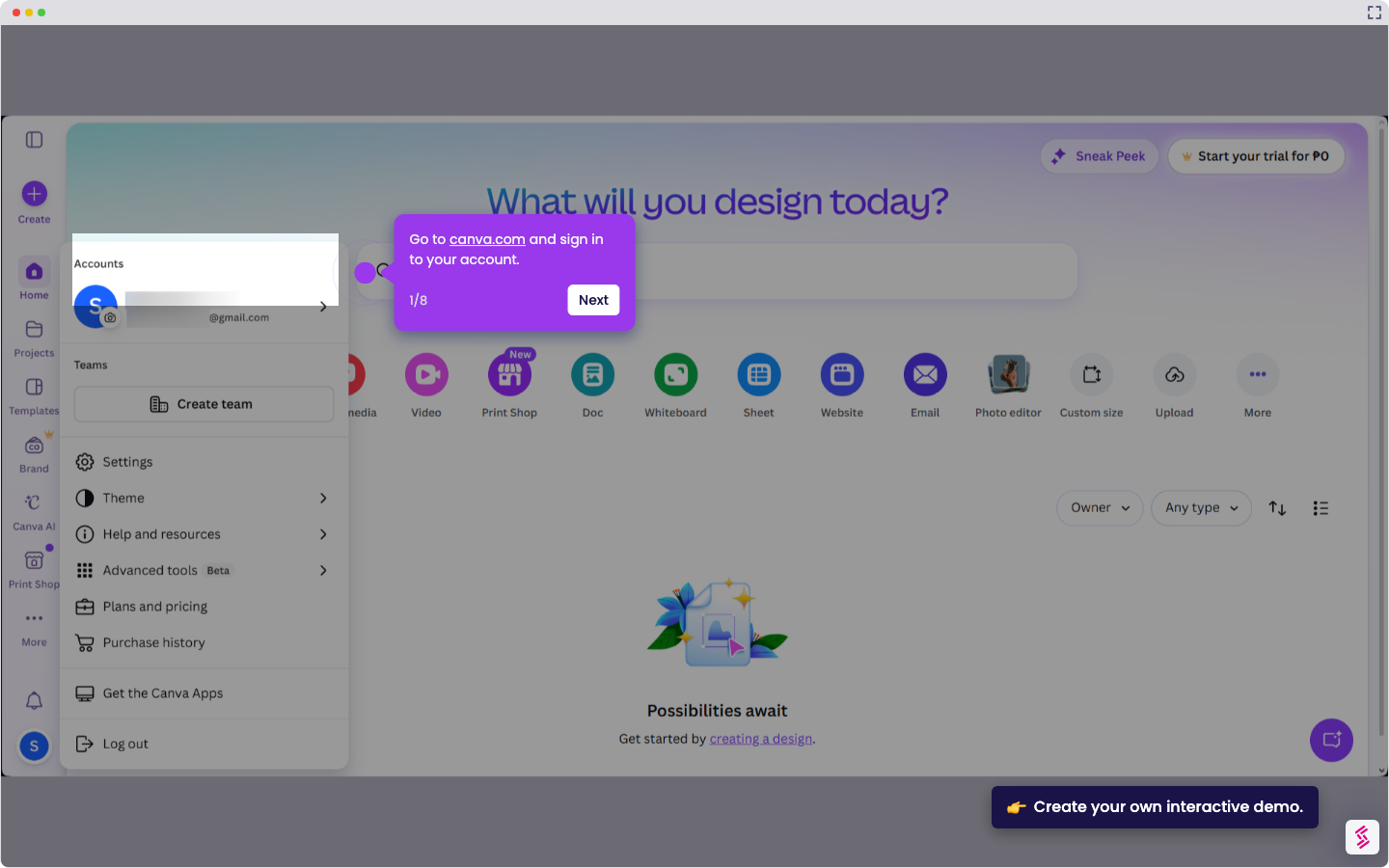
  1. Choose a template from Canva's eBook template library to start your design.
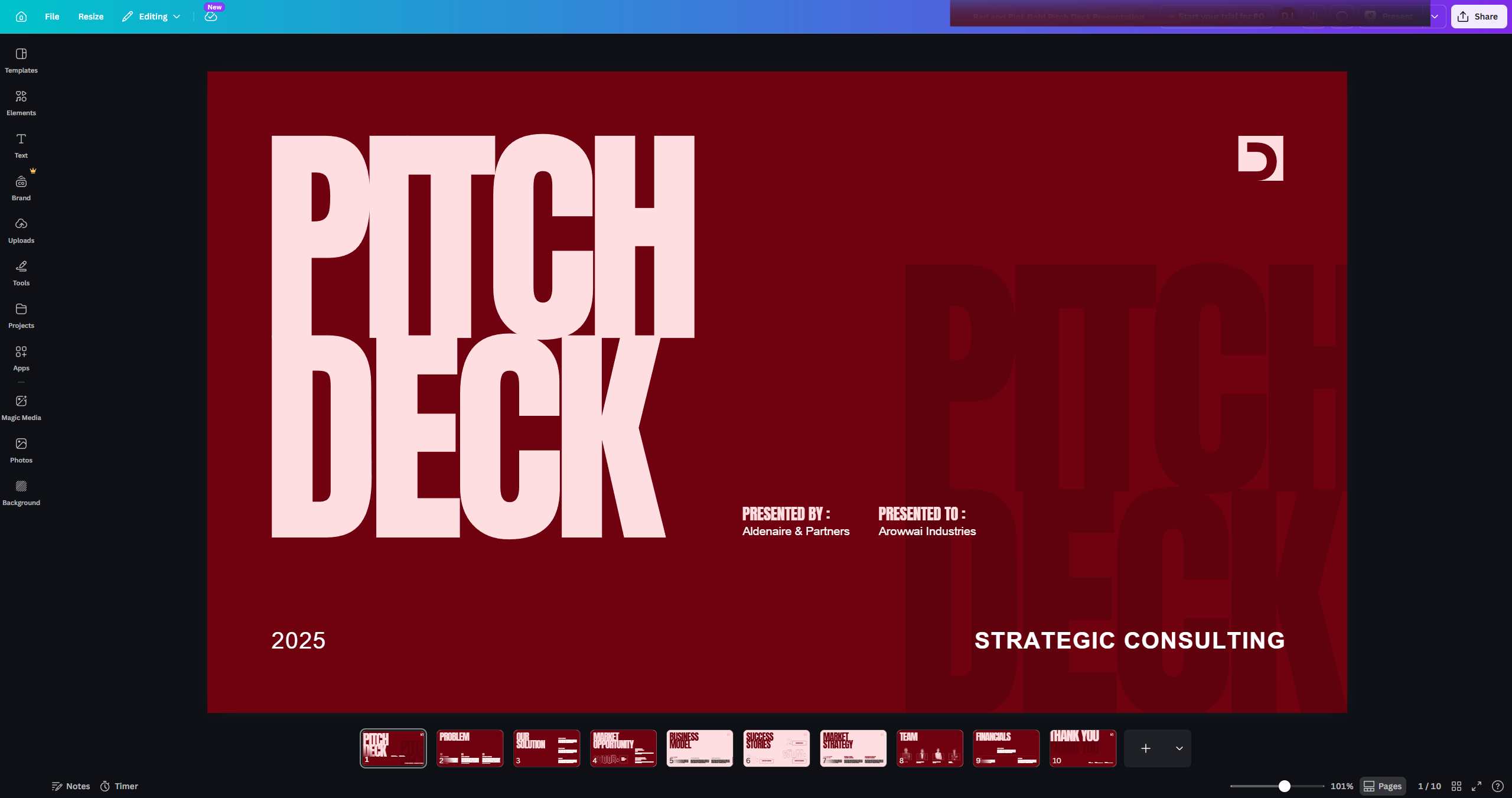
  2. Customise the template by adjusting colours, fonts, and layout elements to match your preferences.
  3. Add your content by typing directly into the template or pasting text from another document.
  4. Insert images and graphics to visually enhance your eBook pages.
  5. Arrange pages by adding, removing, or reordering them using the arrow up and down icons.
  6. Review and finalise your eBook design, making any last edits or adjustments before publishing.
  7. Click 'Share' to prepare your eBook for saving and distribution.
  8. Click 'Download' to begin the export process.
  9. Select your preferred file type — PDF or PNG — from the download options.
  10. Click 'Download' again to save the finished eBook to your device.
📌 Why this matters

Creating an eBook in Canva gives content creators, educators, and marketers a fast, no-code way to produce professional digital publications without hiring a designer. Canva's drag-and-drop eBook templates make it easy to add branded text, images, and structured page layouts in one place. The ability to export directly as a PDF or PNG means your eBook is immediately ready for distribution, whether via email, a landing page, or a self-publishing platform. For teams producing lead magnets, course materials, or thought-leadership content, Canva's eBook builder dramatically reduces production time and cost.
Your product deserves an interactive demo
Start free
Similar Articles
How to Use Canva Templates in Google SlidesHow to Use Canva Templates in Google Slides
Canva

How to Integrate Canva With Google Slides

Madhav Bhandari
Director of Marketing @ Storylane
Canva

How to Create a YouTube Intro

Madhav Bhandari
Director of Marketing @ Storylane
Canva

How to Import Slides from Google Slides to Canva

Madhav Bhandari
Director of Marketing @ Storylane
No items found.
Platform
Interactive Demos
Sandbox Demos
Hubs
RepX
Integrations
Solutions
Product Marketers
Growth & Demand Gen
Sales Reps & AEs
Presales & SEs
Customer Success
Product Managers
Customers
Demo Showcase
Customer Stories
Finer Demos Club
Features
Demo Signals
Personalization
Deal Intelligence
Resources
Blog
The Plot
Tutorials
Help Docs
What’s New
Demo Dundies
Company
Careers
Pricing
Partners
Contact
Trust Center
Backed by
Chrome Extension Icon
Chrome extension
Download
Desktop app
Download
Built in San Francisco Bay Area - ©2026 Storylane
Privacy PolicyTerms & Conditions
X Corp (formerly Twitter)LinkedIn
This website uses cookies to ensure you get the best experience on our website. Learn More
Got it
This website uses cookies to ensure you get the best experience on our website. Learn More
Got it