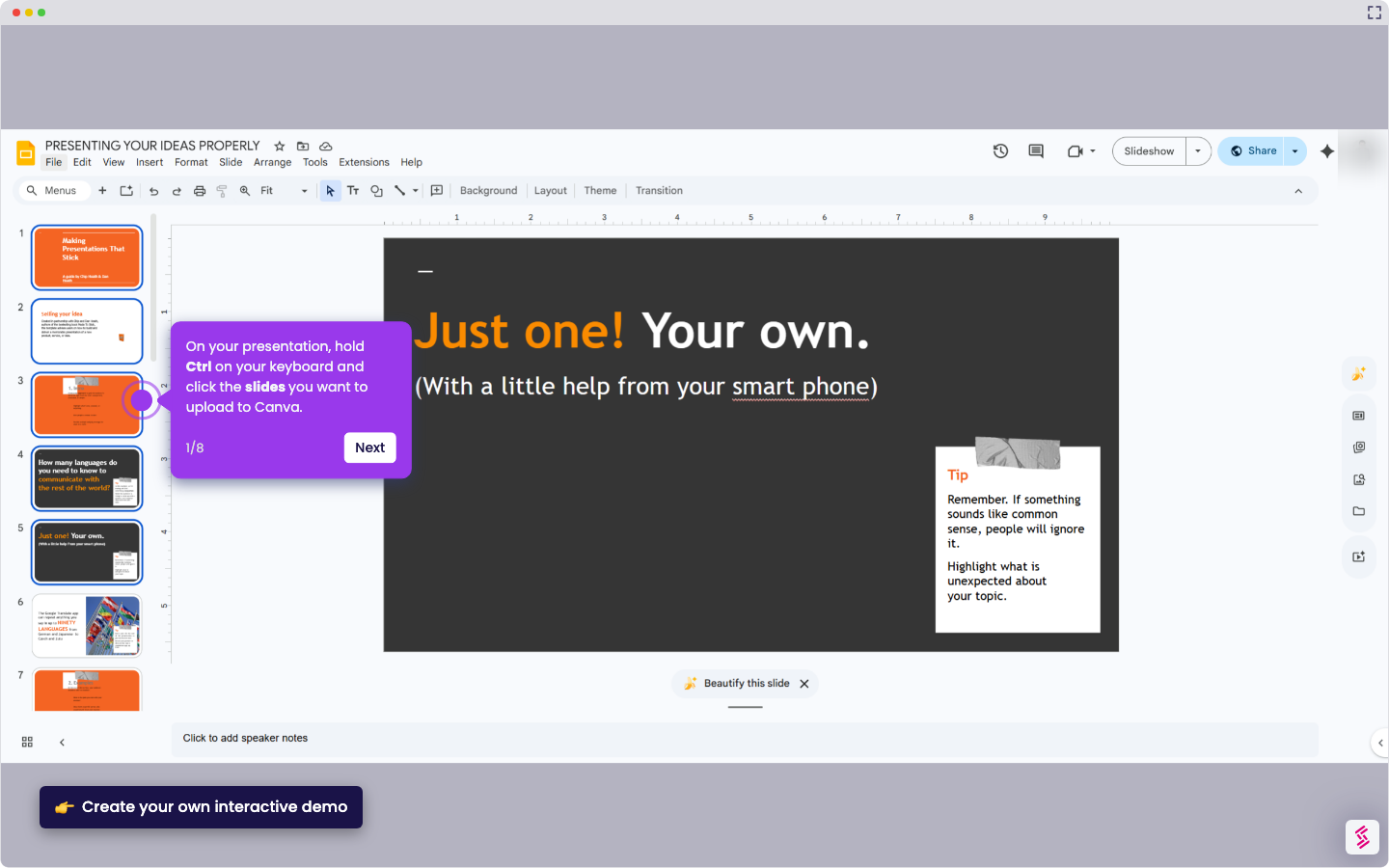
This interactive demo was created free with Storylane in 2 minutes. Create your own demo
Start free
All Tutorials /Canva

How to Create Watermark in Canva

Updated on:
June 5, 2026
By:
Madhav Bhandari
Use this interactive demo to learn how to add a transparent watermark to your Canva design.

Quick summary

This tutorial shows you how to create a watermark in Canva by adding a text element, adjusting its transparency, exporting it as a transparent PNG, and overlaying it onto your image. It covers the full end-to-end workflow — from inserting a text box to downloading and applying the finished watermark.


Steps

  1. On the edit toolbar, click 'Text' to begin creating your watermark.
  2. Click the 'Add a text box' option to insert a new text element.
  3. Adjust the size and position of your watermark on the canvas.
  4. Click the 'Transparency' button above the canvas to open opacity controls.
  5. Drag the 'Transparency Slider' to set the desired visibility level for your watermark.
  6. Click the 'Share' button in the top right corner of the screen.
  7. In the submenu that appears, click 'Download'.
  8. Select 'PNG' as the file type.
  9. Enable the 'Transparent Background' option.
  10. Click 'Download' to save your watermark file.
  11. On the edit toolbar, navigate to 'Uploads'.
  12. Click to add the photo to your Canva design.
  13. Click 'Upload files' to upload your saved watermark.
  14. Click the watermark file to add it to your image.
  15. Resize and reposition the watermark to your preferred placement.
  16. Once satisfied, click 'Share' to save your final watermarked design.

📌 Why this matters

Adding a watermark in Canva lets creators, photographers, and businesses protect their original images and brand their visual content without expensive software. Canva's built-in text and transparency tools make it easy to generate a semi-transparent watermark and export it as a PNG with a transparent background, ready to overlay on any design. This workflow is essential for anyone sharing digital assets publicly who wants to deter unauthorized use while maintaining a professional look. Knowing how to create and apply a Canva watermark gives content creators full control over their intellectual property directly within a tool they already use daily.
Your product deserves an interactive demo
Start free
Similar Articles
How to Use Canva Templates in Google SlidesHow to Use Canva Templates in Google Slides
Canva

How to Integrate Canva With Google Slides

Madhav Bhandari
Director of Marketing @ Storylane
Canva

How to Create a YouTube Intro

Madhav Bhandari
Director of Marketing @ Storylane
Canva

How to Import Slides from Google Slides to Canva

Madhav Bhandari
Director of Marketing @ Storylane
No items found.
Platform
Interactive Demos
Sandbox Demos
Hubs
RepX
Integrations
Solutions
Product Marketers
Growth & Demand Gen
Sales Reps & AEs
Presales & SEs
Customer Success
Product Managers
Customers
Demo Showcase
Customer Stories
Finer Demos Club
Features
Demo Signals
Personalization
Deal Intelligence
Resources
Blog
The Plot
Tutorials
Help Docs
What’s New
Demo Dundies
Company
Careers
Pricing
Partners
Contact
Trust Center
Backed by
Chrome Extension Icon
Chrome extension
Download
Desktop app
Download
Built in San Francisco Bay Area - ©2026 Storylane
Privacy PolicyTerms & Conditions
X Corp (formerly Twitter)LinkedIn
This website uses cookies to ensure you get the best experience on our website. Learn More
Got it
This website uses cookies to ensure you get the best experience on our website. Learn More
Got it