This interactive demo was created free with Storylane in 2 minutes. Create your own demo
Start free
All Tutorials /Canva

How to Integrate Canva with Constant Contact

Updated on:
June 5, 2026
By:
Madhav Bhandari
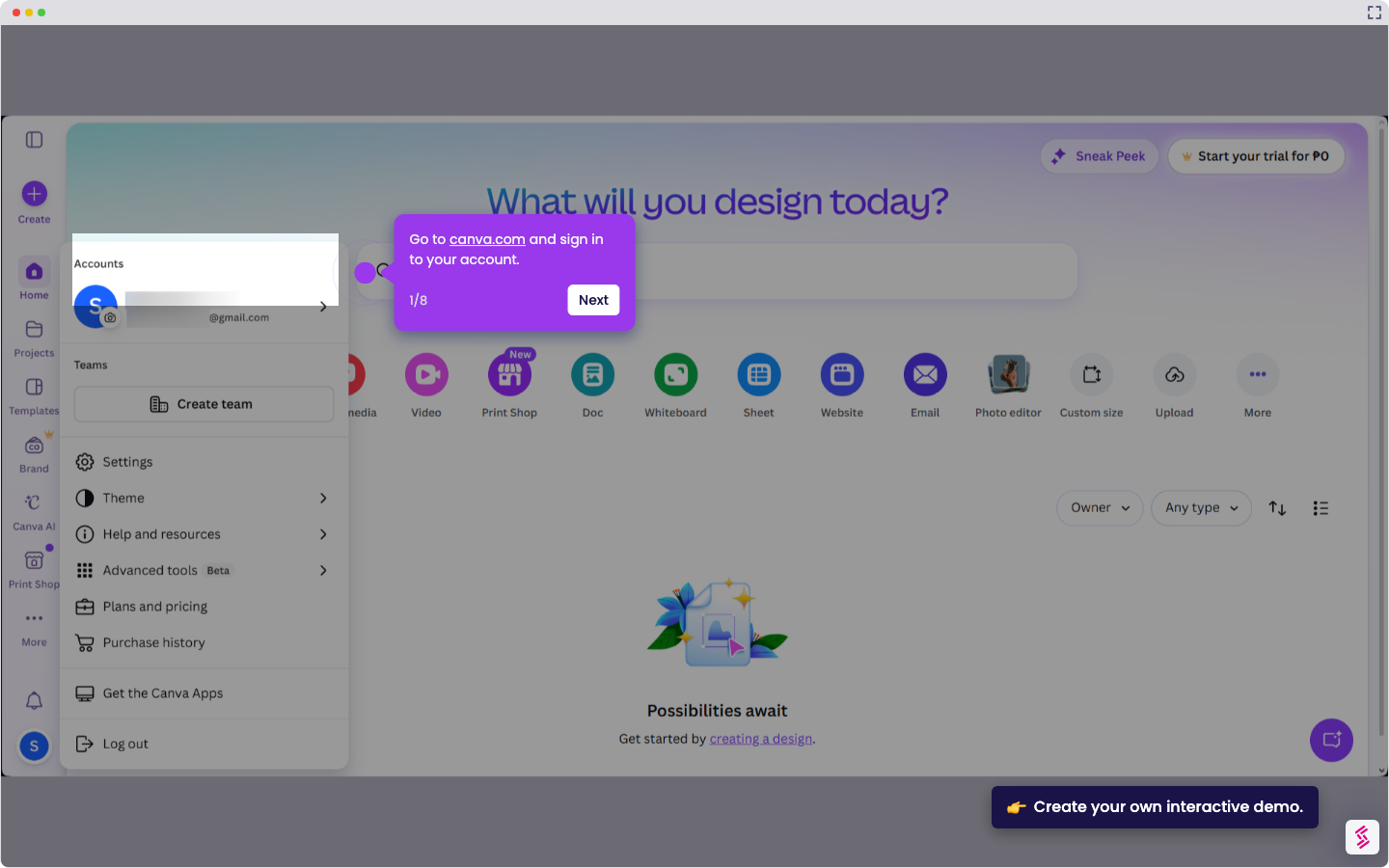
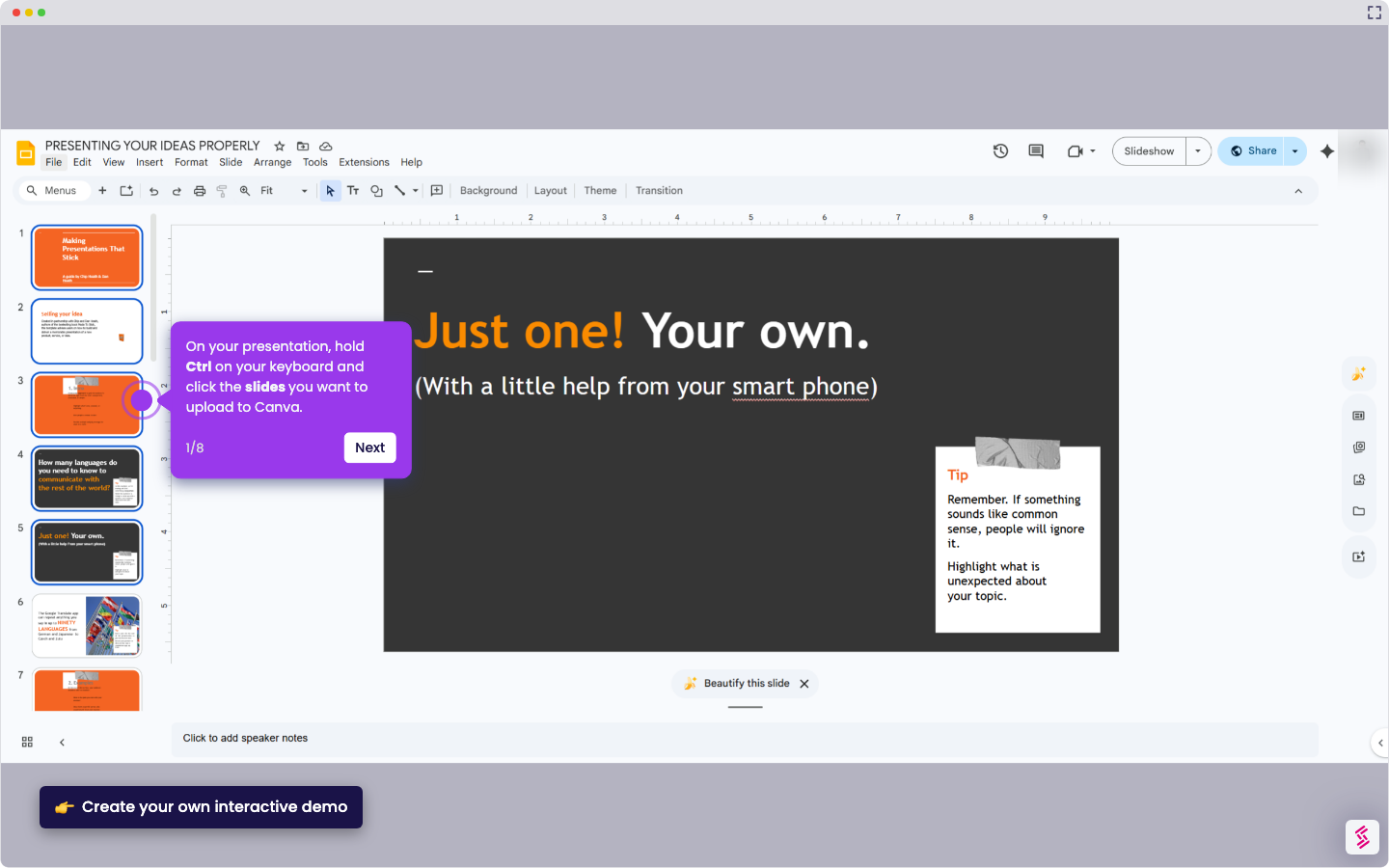
Use this interactive demo to learn how to connect Canva directly inside your Constant Contact email editor.

Quick summary

The Canva and Constant Contact integration lets you design graphics and insert them into email campaigns without leaving the platform. You can use existing Canva projects or create new visuals on the spot and publish them directly to your campaign.


Steps

  1. Log in to Constant Contact and click "Create" to start a new email campaign or edit an existing one.
  2. Choose a campaign to continue.
  3. Click "+" to add media to your email.
  4. Select "Create in Canva" from the media options.
  5. Click "Let's Create!" to launch the Canva editor.
  6. Log into your Canva account — if you don't have one, sign up with Google, Facebook, or an email address.
  7. Create your graphic inside the Canva editor.
  8. To reuse an existing design, click "Projects" from the left-hand sidebar to browse your saved Canva designs.
  9. Click "Publish" in the upper right when you're done to insert the graphic into your campaign.

📌 Why this matters

Integrating Canva with Constant Contact allows marketers to design professional-quality email graphics without switching between tools, streamlining the entire email creation workflow. This built-in Canva integration eliminates the need to export, resize, or manually upload image files, reducing production time significantly. For small businesses and marketing teams, the ability to create or reuse Canva designs directly inside Constant Contact means faster campaign launches and more visually consistent email marketing. It's a key feature for anyone looking to improve email engagement through polished, on-brand visuals with minimal design effort.
Your product deserves an interactive demo
Start free
Similar Articles
How to Use Canva Templates in Google SlidesHow to Use Canva Templates in Google Slides
Canva

How to Integrate Canva With Google Slides

Madhav Bhandari
Director of Marketing @ Storylane
Canva

How to Create a YouTube Intro

Madhav Bhandari
Director of Marketing @ Storylane
Canva

How to Import Slides from Google Slides to Canva

Madhav Bhandari
Director of Marketing @ Storylane
No items found.
Platform
Interactive Demos
Sandbox Demos
Hubs
RepX
Integrations
Solutions
Product Marketers
Growth & Demand Gen
Sales Reps & AEs
Presales & SEs
Customer Success
Product Managers
Customers
Demo Showcase
Customer Stories
Finer Demos Club
Features
Demo Signals
Personalization
Deal Intelligence
Resources
Blog
The Plot
Tutorials
Help Docs
What’s New
Demo Dundies
Company
Careers
Pricing
Partners
Contact
Trust Center
Backed by
Chrome Extension Icon
Chrome extension
Download
Desktop app
Download
Built in San Francisco Bay Area - ©2026 Storylane
Privacy PolicyTerms & Conditions
X Corp (formerly Twitter)LinkedIn
This website uses cookies to ensure you get the best experience on our website. Learn More
Got it
This website uses cookies to ensure you get the best experience on our website. Learn More
Got it