This interactive demo was created free with Storylane in 2 minutes. Create your own demo
Start free
All Tutorials /Notebook LM

How to Integrate NotebookLM with Google Drive

Updated on:
June 5, 2026
By:
Madhav Bhandari
Use this interactive demo to learn how to sync a NotebookLM notebook with Google Drive.

Quick summary

This tutorial shows how to integrate NotebookLM with Google Drive by selecting a notebook, opening the Sources tab, and triggering a Google Drive sync. In just four steps, your notebook is connected to imported Google Docs or Google Slides documents for seamless AI-powered research.


Steps

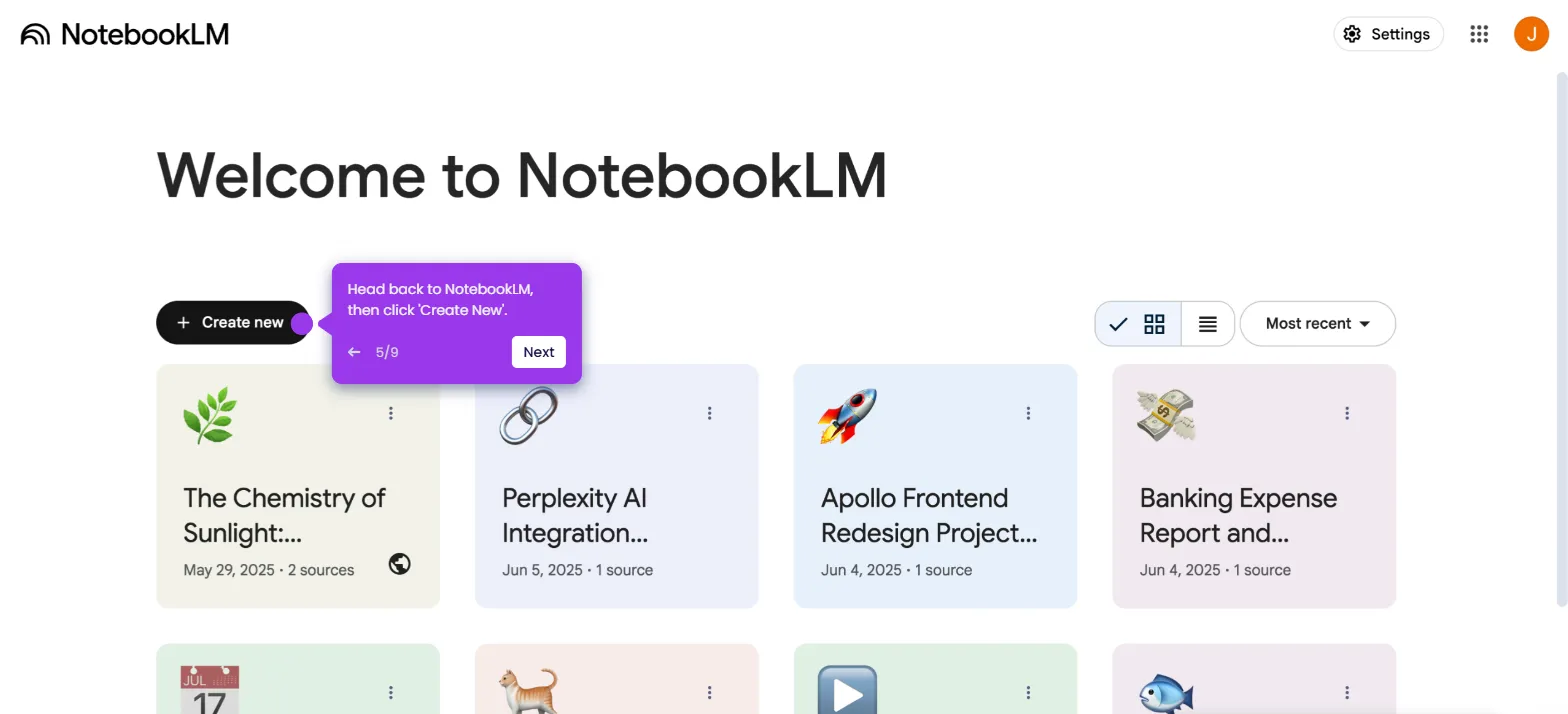
  1. On the NotebookLM dashboard, select the notebook you want to integrate with Google Drive.
  2. Navigate to the Sources tab and select the imported Google Docs or Google Slides document you wish to sync.
  3. Tap Click to Sync With Google Drive to initiate the integration process.
  4. Once the sync completes successfully, your selected notebook will be fully integrated with Google Drive.
📌 Why this matters

Connecting NotebookLM to Google Drive allows users to keep their AI-powered notebooks automatically updated with the latest content from Google Docs and Google Slides. This integration eliminates the need to manually re-upload source documents, ensuring that research, summaries, and AI-generated insights always reflect the most current version of your files. For teams and individuals who rely on Google Workspace, syncing NotebookLM with Google Drive creates a seamless workflow between document creation and AI-assisted analysis. It is an essential feature for anyone looking to maximize productivity with Google's AI research tool.
Your product deserves an interactive demo
Start free
Similar Articles
Notebook LM

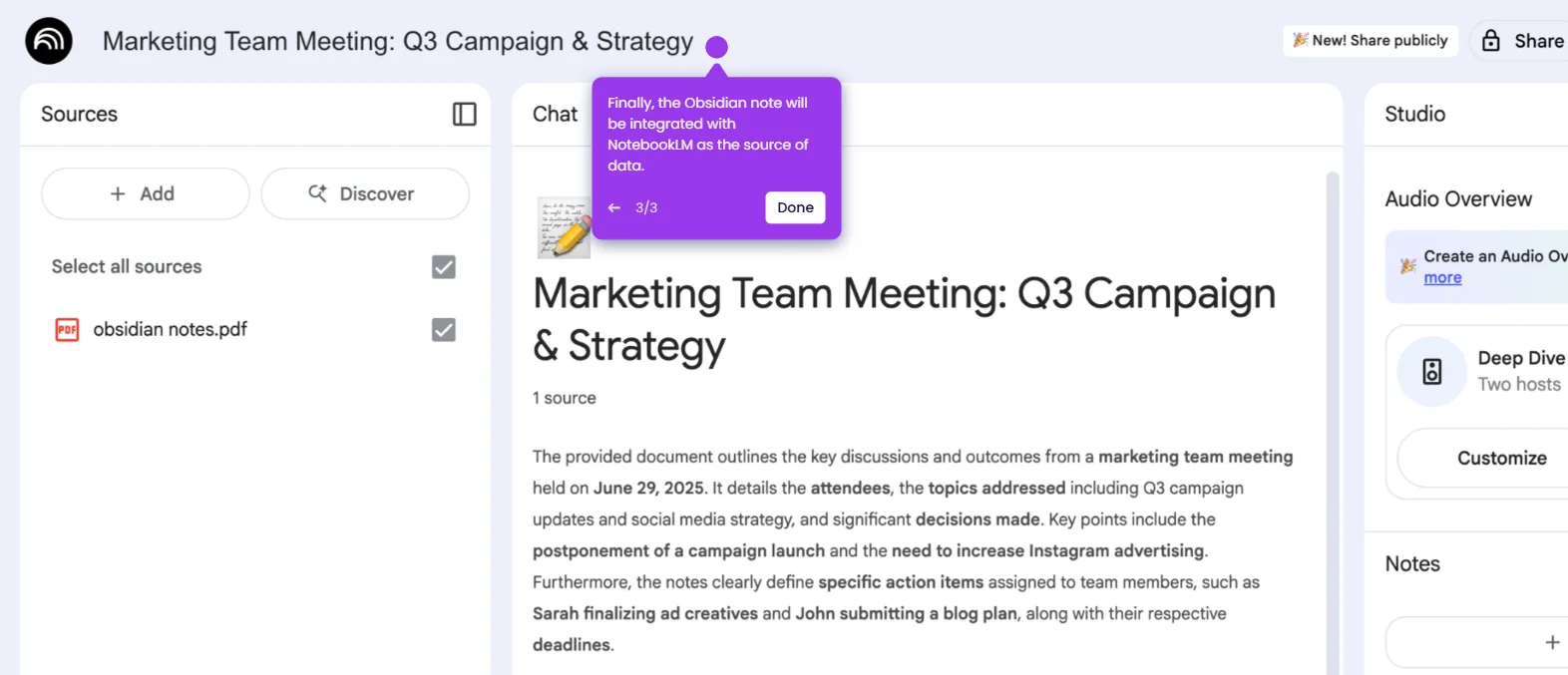
How to Integrate NotebookLM with Obsidian

Madhav Bhandari
Director of Marketing @ Storylane
Notebook LM

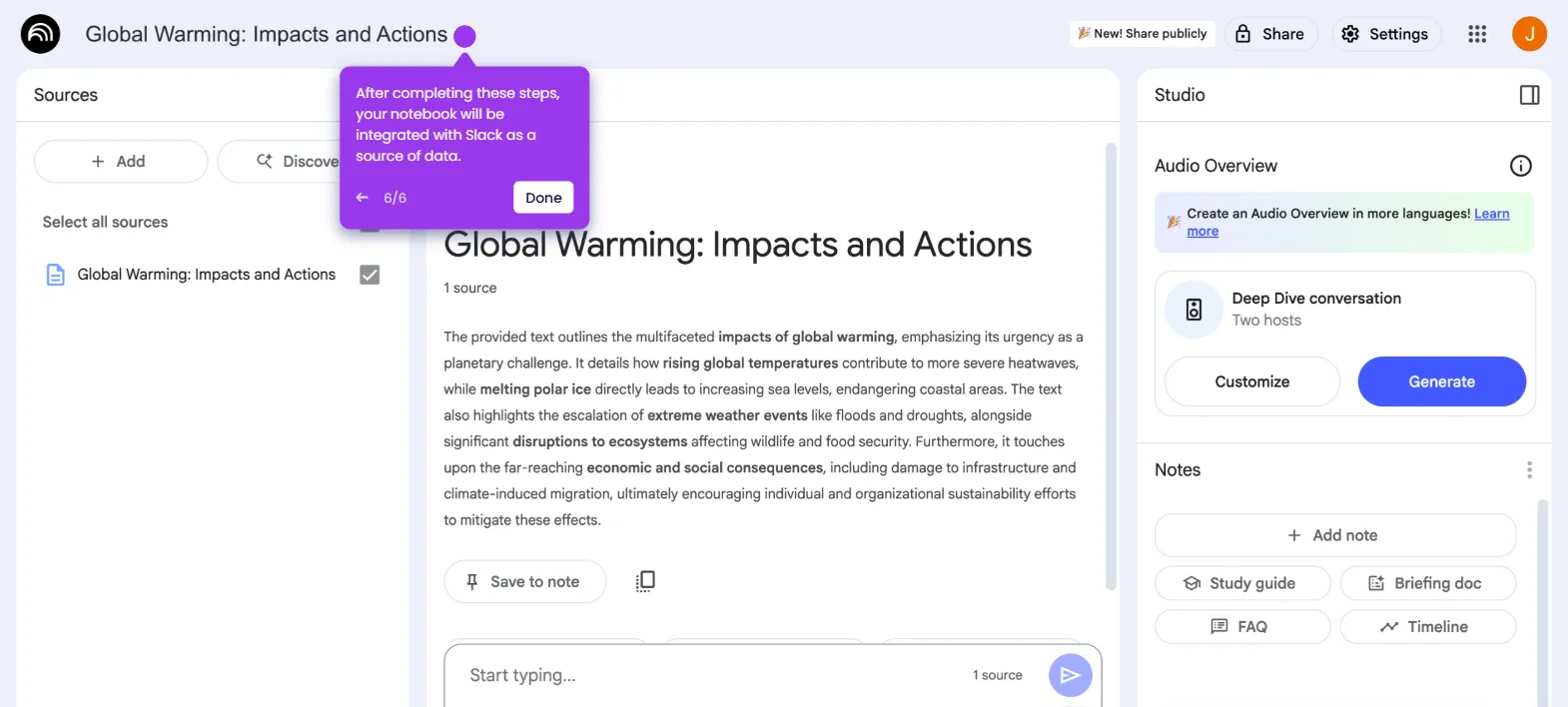
How to Integrate NotebookLM with Slack

Madhav Bhandari
Director of Marketing @ Storylane
Notebook LM

How to Integrate NotebookLM with ChatGPT

Madhav Bhandari
Director of Marketing @ Storylane
No items found.
Platform
Interactive Demos
Sandbox Demos
Hubs
RepX
Integrations
Solutions
Product Marketers
Growth & Demand Gen
Sales Reps & AEs
Presales & SEs
Customer Success
Product Managers
Customers
Demo Showcase
Customer Stories
Finer Demos Club
Features
Demo Signals
Personalization
Deal Intelligence
Resources
Blog
The Plot
Tutorials
Help Docs
What’s New
Demo Dundies
Company
Careers
Pricing
Partners
Contact
Trust Center
Backed by
Chrome Extension Icon
Chrome extension
Download
Desktop app
Download
Built in San Francisco Bay Area - ©2026 Storylane
Privacy PolicyTerms & Conditions
X Corp (formerly Twitter)LinkedIn
This website uses cookies to ensure you get the best experience on our website. Learn More
Got it
This website uses cookies to ensure you get the best experience on our website. Learn More
Got it