This interactive demo was created free with Storylane in 2 minutes. Create your own demo
Start free
All Tutorials /Notebook LM

How to Integrate NotebookLM with Google Sheets

Updated on:
June 5, 2026
By:
Madhav Bhandari
Use this interactive demo to learn how to connect your Google Sheets data to a NotebookLM notebook.

Quick summary

Integrating NotebookLM with Google Sheets lets you use your spreadsheet data as an AI-queryable source inside a notebook. This process involves downloading your sheet as a file and uploading it directly into NotebookLM as a new source.


Steps

  1. Inside your spreadsheet, navigate to the top menu bar and click File.
  2. Hover over the Download option and select your preferred file format — PDF or HTML is recommended to avoid compatibility issues.
  3. Configure the export settings and click Export in the top-right corner to save the file.
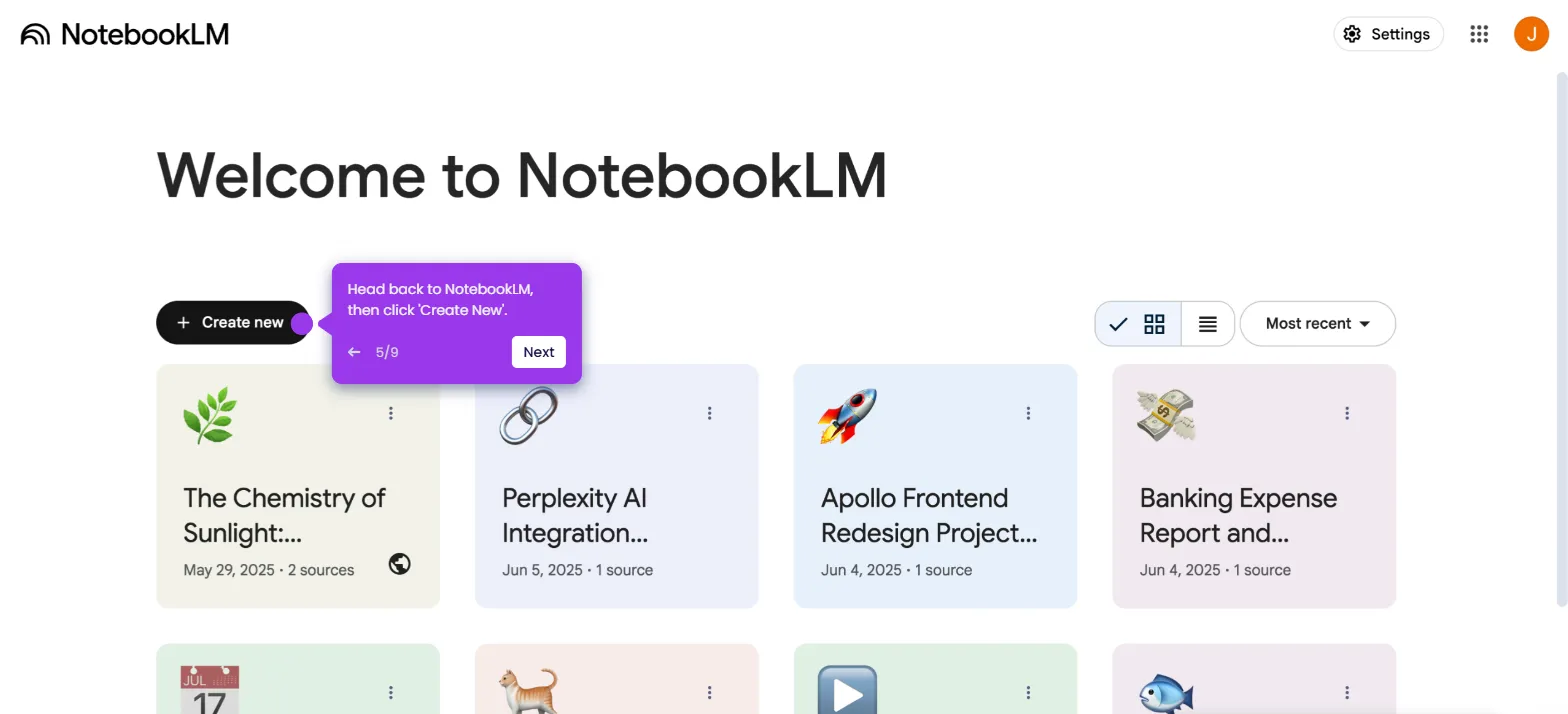
  4. Head back to NotebookLM and click Create New to start a fresh notebook.
  5. Click Choose File and select the newly downloaded spreadsheet to upload it as a source.
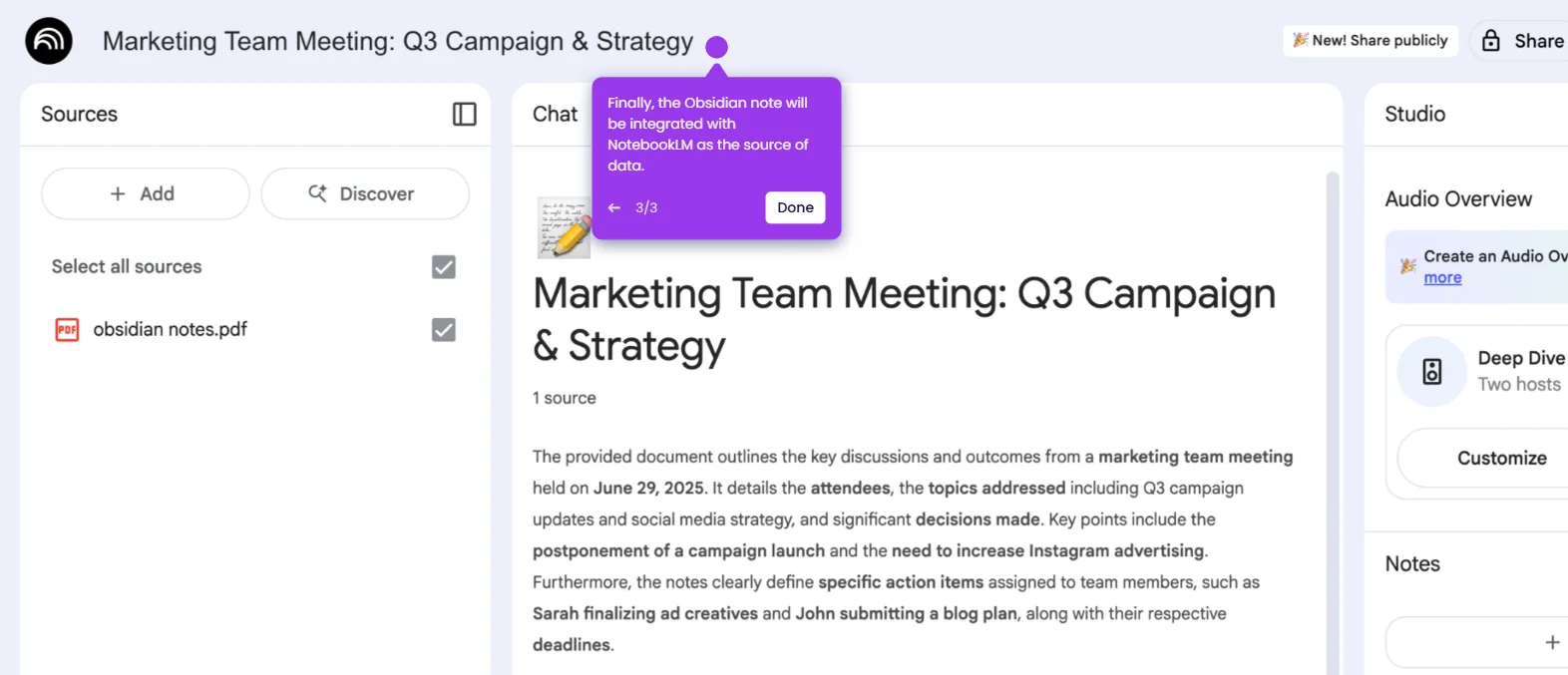
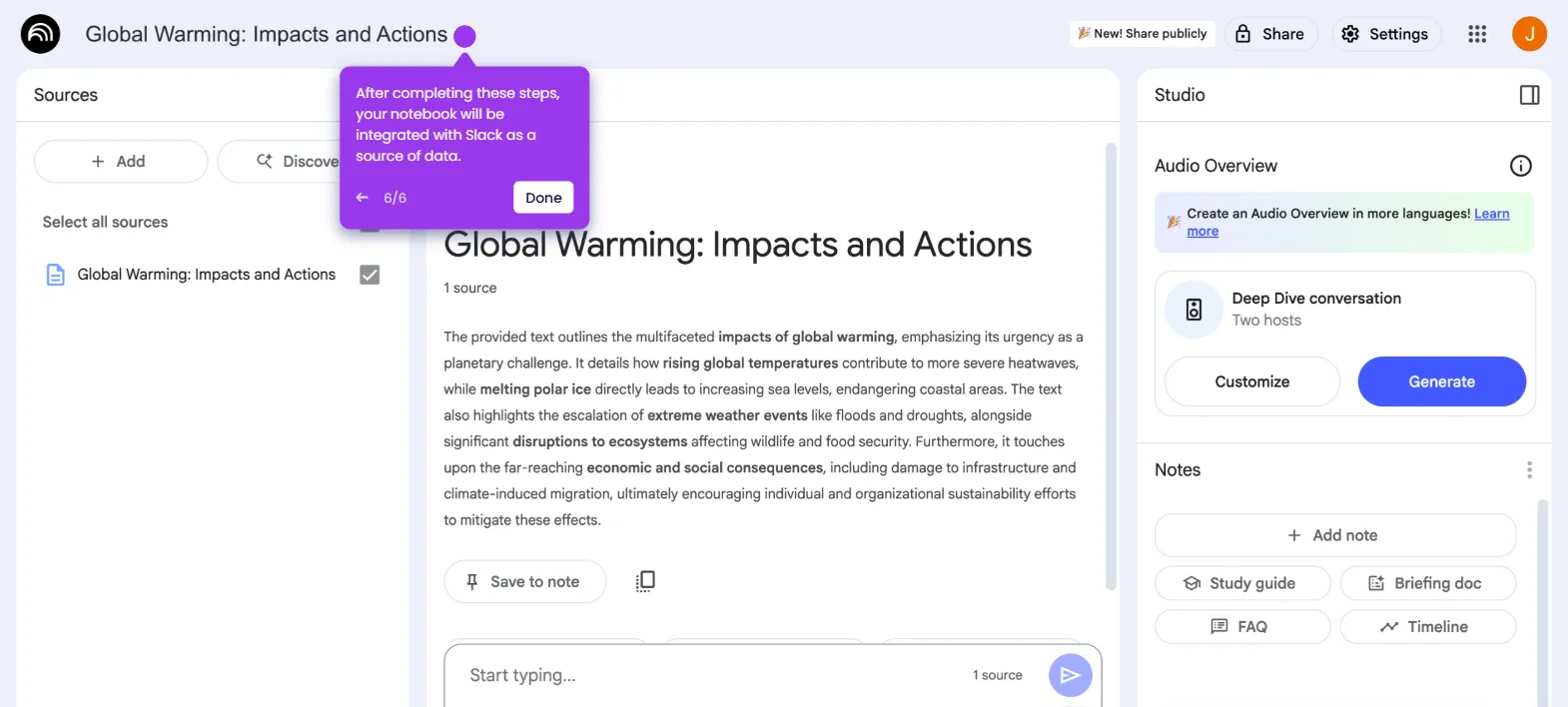
  6. Once complete, your notebook will be integrated with Google Sheets and the imported spreadsheet will be available as a queryable data source.
📌 Why this matters

Connecting NotebookLM with Google Sheets allows teams to turn structured spreadsheet data into an AI-powered knowledge source without manual data entry. This integration is especially valuable for analysts and finance teams who need to query expense reports, banking data, or other tabular datasets using natural language. By exporting a Google Sheet and uploading it into NotebookLM, users can ask questions, generate summaries, and extract insights directly from their spreadsheet content. This workflow bridges the gap between raw data in Google Sheets and the conversational AI capabilities of NotebookLM.
Your product deserves an interactive demo
Start free
Similar Articles
Notebook LM

How to Integrate NotebookLM with Obsidian

Madhav Bhandari
Director of Marketing @ Storylane
Notebook LM

How to Integrate NotebookLM with Slack

Madhav Bhandari
Director of Marketing @ Storylane
Notebook LM

How to Integrate NotebookLM with ChatGPT

Madhav Bhandari
Director of Marketing @ Storylane
No items found.
Platform
Interactive Demos
Sandbox Demos
Hubs
RepX
Integrations
Solutions
Product Marketers
Growth & Demand Gen
Sales Reps & AEs
Presales & SEs
Customer Success
Product Managers
Customers
Demo Showcase
Customer Stories
Finer Demos Club
Features
Demo Signals
Personalization
Deal Intelligence
Resources
Blog
The Plot
Tutorials
Help Docs
What’s New
Demo Dundies
Company
Careers
Pricing
Partners
Contact
Trust Center
Backed by
Chrome Extension Icon
Chrome extension
Download
Desktop app
Download
Built in San Francisco Bay Area - ©2026 Storylane
Privacy PolicyTerms & Conditions
X Corp (formerly Twitter)LinkedIn
This website uses cookies to ensure you get the best experience on our website. Learn More
Got it
This website uses cookies to ensure you get the best experience on our website. Learn More
Got it