This interactive demo was created free with Storylane in 2 minutes. Create your own demo
Start free
All Tutorials /Canva

How to Make an Editable PDF in Canva

Updated on:
June 5, 2026
By:
Madhav Bhandari
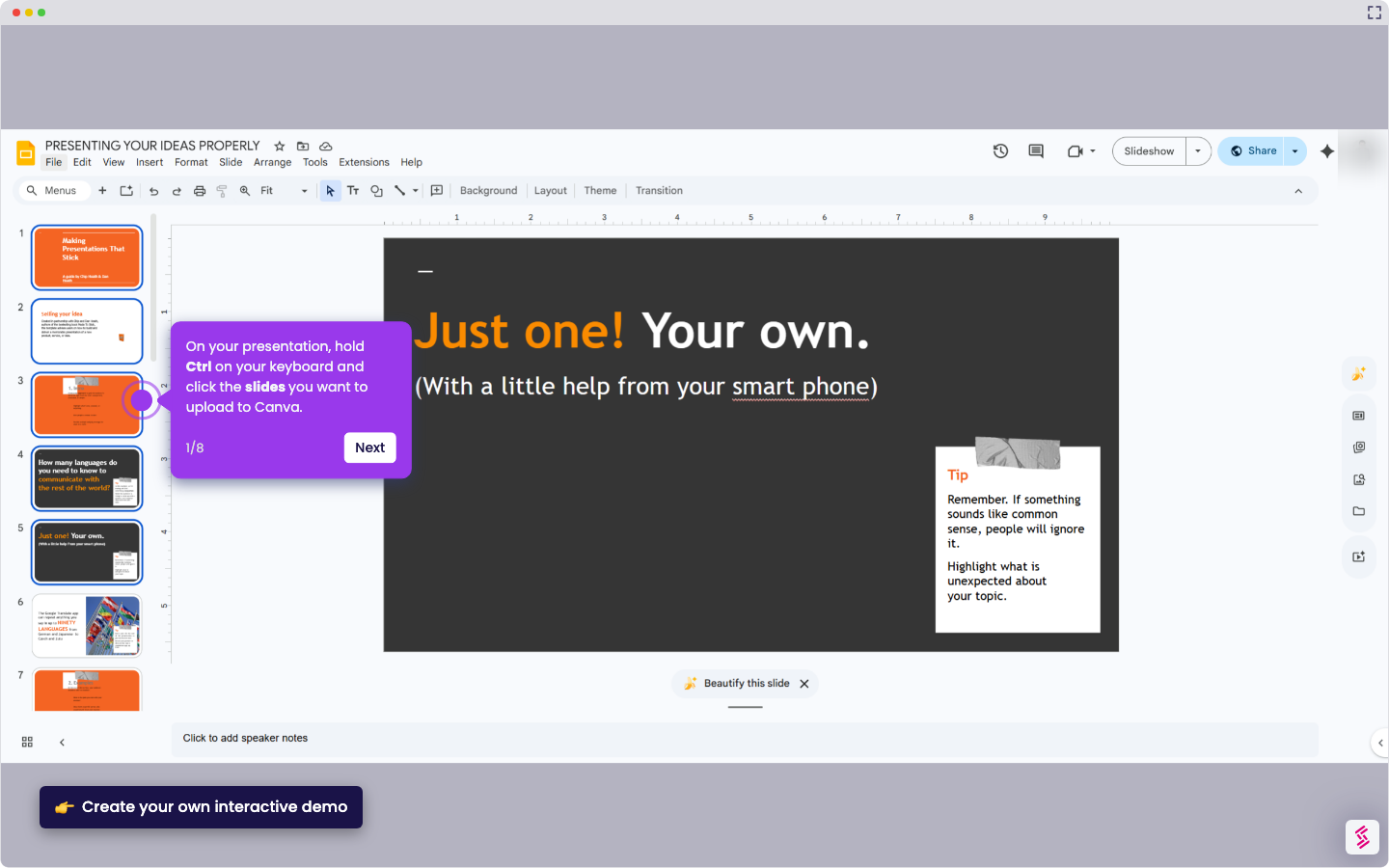
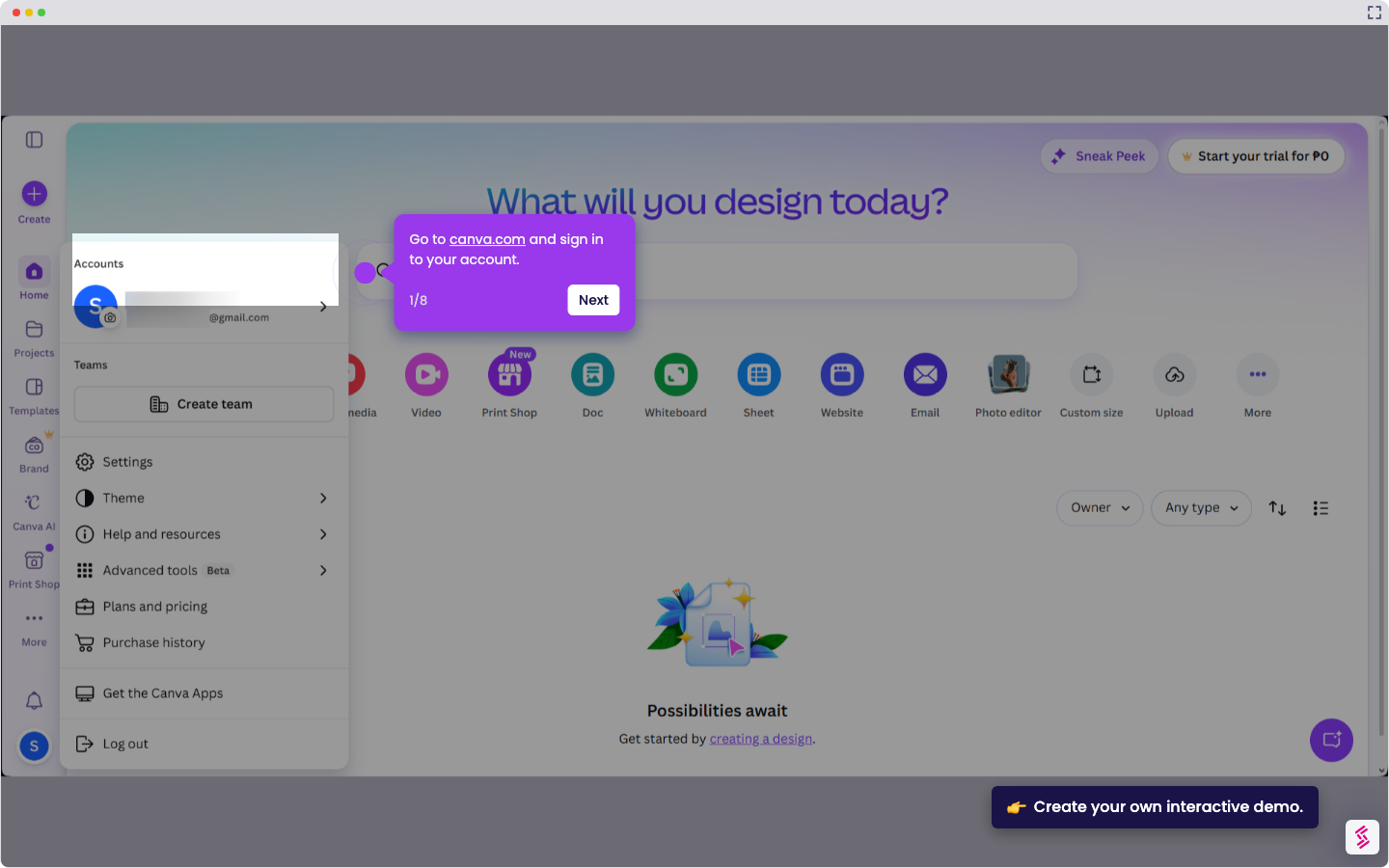
Use this interactive demo to learn how to upload, customize, and save an editable PDF in Canva.

Quick summary

Canva's PDF editor lets you upload any PDF, customize its text, colors, and layout, then download it as a PDF Standard file — all without leaving your browser. This step-by-step walkthrough covers everything from opening the PDF editor on the Canva dashboard to sharing and exporting your finished document.


Steps

  1. On your dashboard, click 'Design spotlight' in the top left corner and select 'PDF editor'.
  2. Click 'Upload your PDF' to import your file — you'll be directed to the editing tab.
  3. After uploading, customize your PDF to fit your style and preferences using the available editing tools.
  4. Add your own text, insert form fields, and change colors and fonts as needed.
  5. Expand your document by clicking 'Duplicate Pages' or 'Add Pages' to include multiple pages.
  6. When satisfied with your edits, click 'Share' in the top right corner.
  7. Invite collaborators by adding team members via their email address.
  8. Alternatively, enable link sharing by selecting 'Anyone with the link' to collaborate via a shared URL.
  9. Click 'Download' to begin the export process.
  10. Select 'PDF Standard' as the file type, then click 'Download' to save your completed editable PDF.

📌 Why this matters

Creating editable PDFs typically requires expensive desktop software, but Canva's browser-based PDF editor removes that barrier entirely. Users can upload an existing PDF, customize text, fonts, colors, and form fields, then download a polished PDF Standard file in minutes. Built-in collaboration tools — including email invites and shareable links — make it easy for teams to review and co-edit documents in real time. For anyone searching for a free, no-install way to edit and share PDFs, Canva delivers a professional-grade solution accessible from any device.
Your product deserves an interactive demo
Start free
Similar Articles
How to Use Canva Templates in Google SlidesHow to Use Canva Templates in Google Slides
Canva

How to Integrate Canva With Google Slides

Madhav Bhandari
Director of Marketing @ Storylane
Canva

How to Create a YouTube Intro

Madhav Bhandari
Director of Marketing @ Storylane
Canva

How to Import Slides from Google Slides to Canva

Madhav Bhandari
Director of Marketing @ Storylane
No items found.
Platform
Interactive Demos
Sandbox Demos
Hubs
RepX
Integrations
Solutions
Product Marketers
Growth & Demand Gen
Sales Reps & AEs
Presales & SEs
Customer Success
Product Managers
Customers
Demo Showcase
Customer Stories
Finer Demos Club
Features
Demo Signals
Personalization
Deal Intelligence
Resources
Blog
The Plot
Tutorials
Help Docs
What’s New
Demo Dundies
Company
Careers
Pricing
Partners
Contact
Trust Center
Backed by
Chrome Extension Icon
Chrome extension
Download
Desktop app
Download
Built in San Francisco Bay Area - ©2026 Storylane
Privacy PolicyTerms & Conditions
X Corp (formerly Twitter)LinkedIn
This website uses cookies to ensure you get the best experience on our website. Learn More
Got it
This website uses cookies to ensure you get the best experience on our website. Learn More
Got it