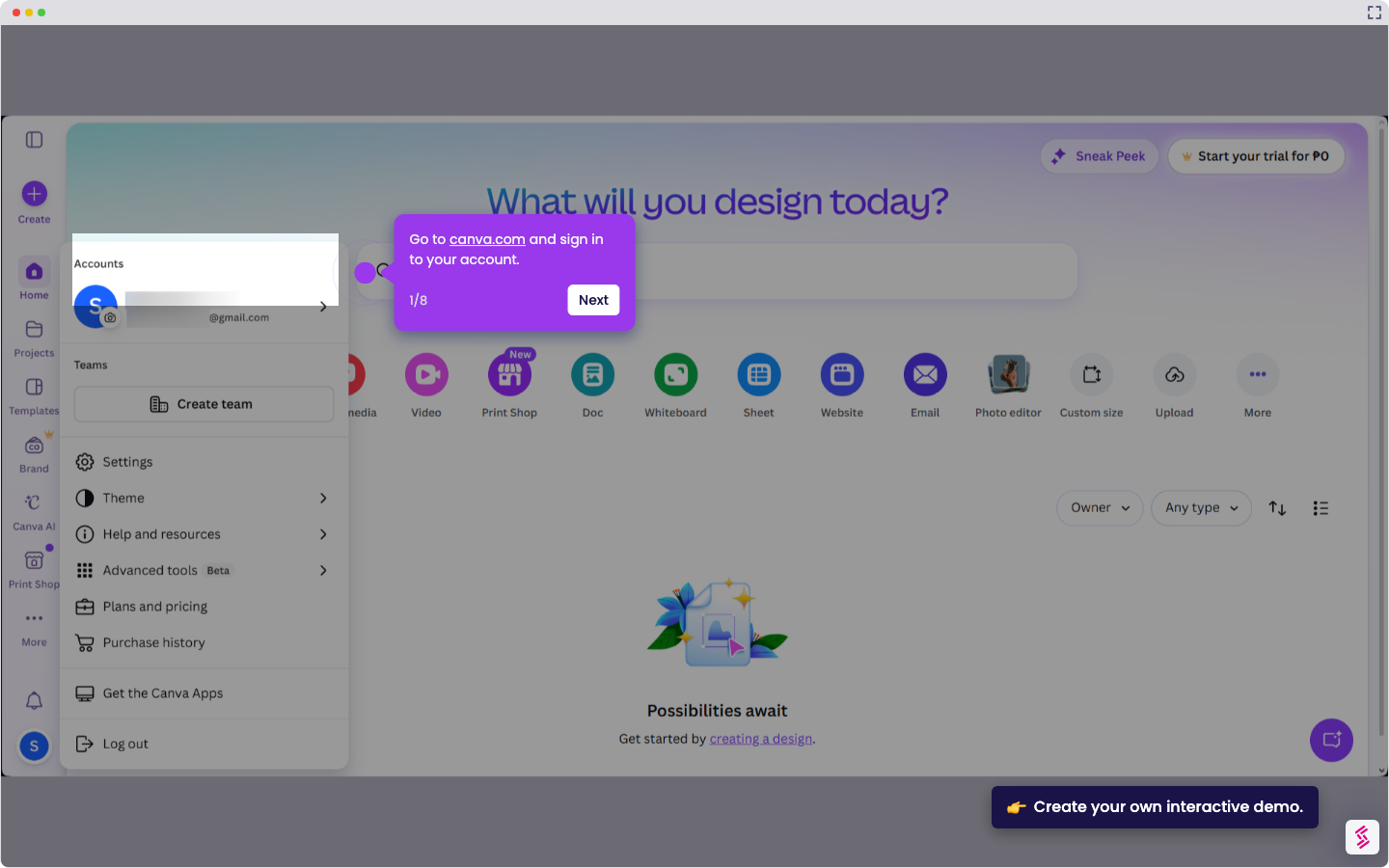
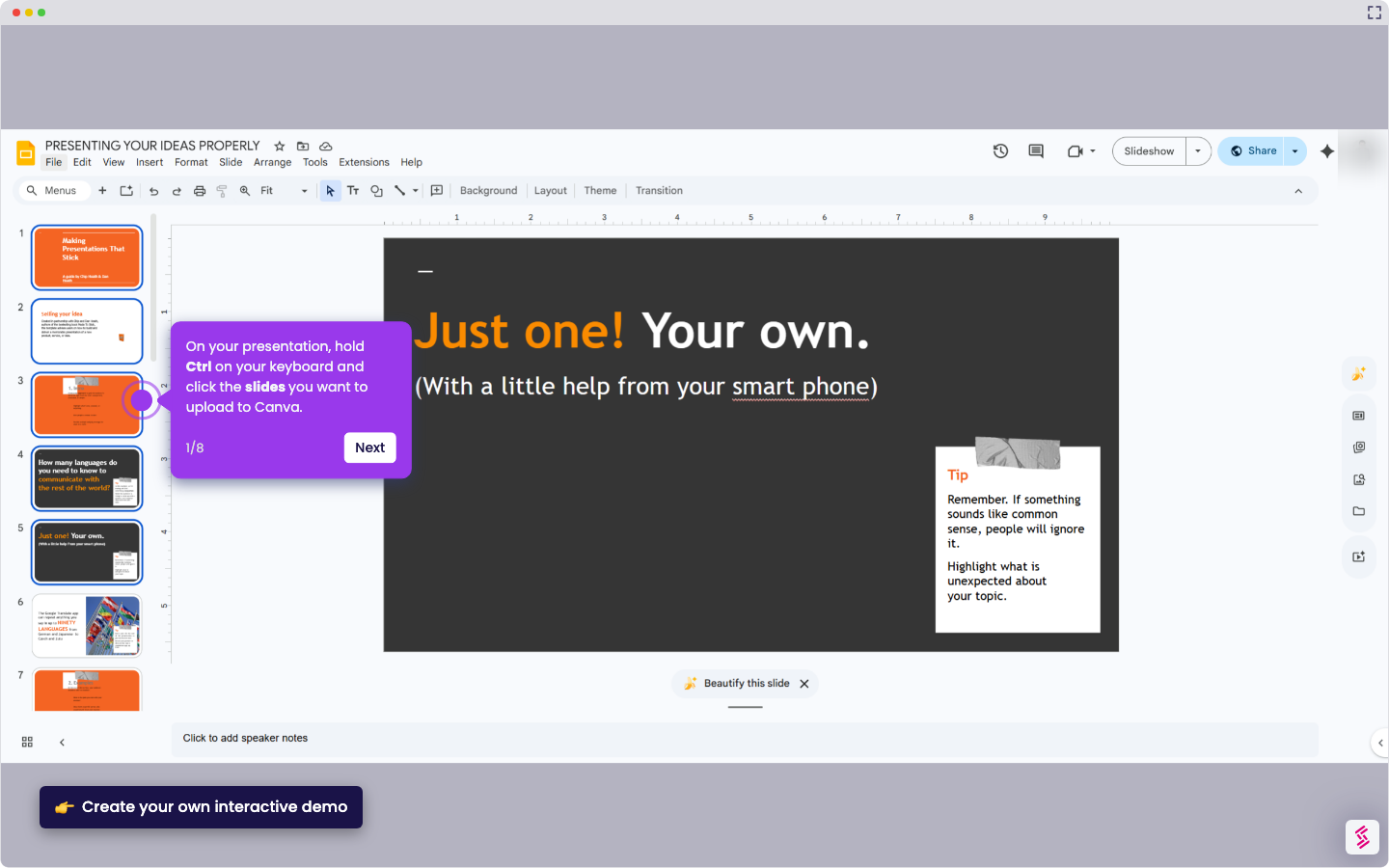
This interactive demo was created free with Storylane in 2 minutes. Create your own demo
Start free
All Tutorials /Canva

How to Make Wavy Text in Canva

Updated on:
June 5, 2026
By:
Madhav Bhandari
Use this interactive demo to learn how to create a wavy text effect in Canva using the Curve tool.

Quick summary

Creating wavy text in Canva involves using the Effects panel and the Curve shape option to bend text, then duplicating and repositioning the curved layers to produce a wave effect. This step-by-step process works on any Canva design and requires no third-party plugins or design expertise.


Steps

  1. Open Canva and start a new design or open an existing one.
  2. Click on the Text tool from the edit toolbar.
  3. Choose your preferred text styles.
  4. Type the text you want to make wavy.
  5. On the toolbar above the editor, click Effects.
  6. Go to Shape and choose the Curve option.
  7. In the left-hand corner, adjust the curve level to your preference.
  8. Click the Addition icon to duplicate the curved text.
  9. Once duplicated, arrange the curve layers to begin creating the wave effect.
  10. Go back to the Effects option for the duplicated text.
  11. Adjust the curve level of the duplicated words.
  12. Keep both text sets separated to maintain the curve shape.
  13. Adjust the position of each curve layer to achieve the desired wavy look.

📌 Why this matters

Creating wavy text in Canva is a popular design technique for making social media graphics, posters, and marketing materials stand out visually. Canva's built-in Effects panel and Curve tool make it possible to achieve this curved text effect without any graphic design software or advanced skills. By duplicating and repositioning curved text layers, users can simulate a true wave pattern entirely within Canva's browser-based editor. This makes wavy text accessible to content creators, small business owners, and marketers who need eye-catching typography fast.
Your product deserves an interactive demo
Start free
Similar Articles
How to Use Canva Templates in Google SlidesHow to Use Canva Templates in Google Slides
Canva

How to Integrate Canva With Google Slides

Madhav Bhandari
Director of Marketing @ Storylane
Canva

How to Create a YouTube Intro

Madhav Bhandari
Director of Marketing @ Storylane
Canva

How to Import Slides from Google Slides to Canva

Madhav Bhandari
Director of Marketing @ Storylane
No items found.
Platform
Interactive Demos
Sandbox Demos
Hubs
RepX
Integrations
Solutions
Product Marketers
Growth & Demand Gen
Sales Reps & AEs
Presales & SEs
Customer Success
Product Managers
Customers
Demo Showcase
Customer Stories
Finer Demos Club
Features
Demo Signals
Personalization
Deal Intelligence
Resources
Blog
The Plot
Tutorials
Help Docs
What’s New
Demo Dundies
Company
Careers
Pricing
Partners
Contact
Trust Center
Backed by
Chrome Extension Icon
Chrome extension
Download
Desktop app
Download
Built in San Francisco Bay Area - ©2026 Storylane
Privacy PolicyTerms & Conditions
X Corp (formerly Twitter)LinkedIn
This website uses cookies to ensure you get the best experience on our website. Learn More
Got it
This website uses cookies to ensure you get the best experience on our website. Learn More
Got it