This interactive demo was created free with Storylane in 2 minutes. Create your own demo
Start free
All Tutorials /Canva

How to Use Canva for Sublimation

Updated on:
June 5, 2026
By:
Madhav Bhandari
Use this interactive demo to learn how to design and export a sublimation project in Canva.

Quick summary

This tutorial walks you through how to create a sublimation design in Canva from scratch, including setting a custom canvas size, adding text and graphics, and exporting as a CMYK PDF ready for sublimation printing.


Steps

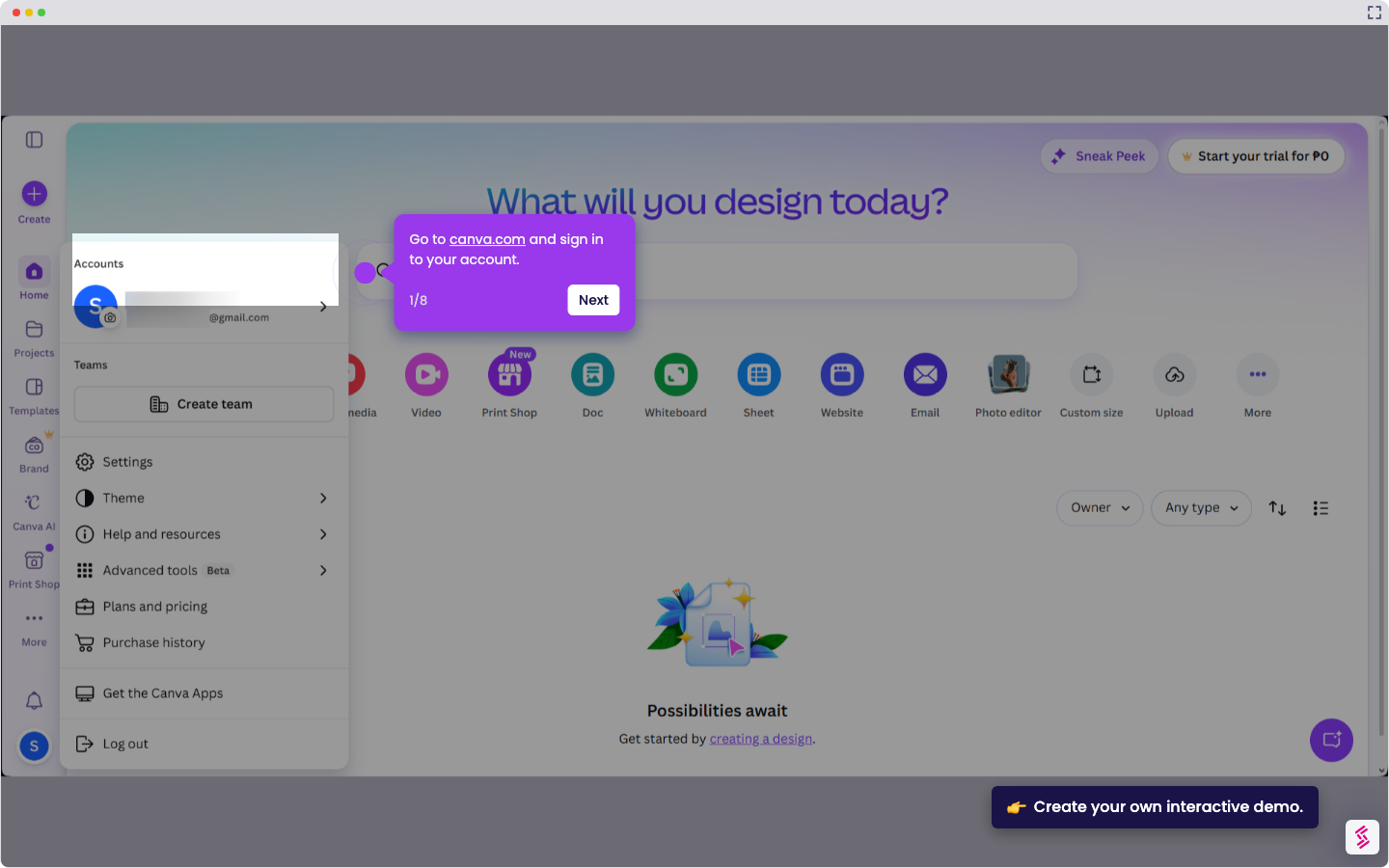
  1. Click Create a design from the Canva homepage.
  2. Select Custom size from the design options.
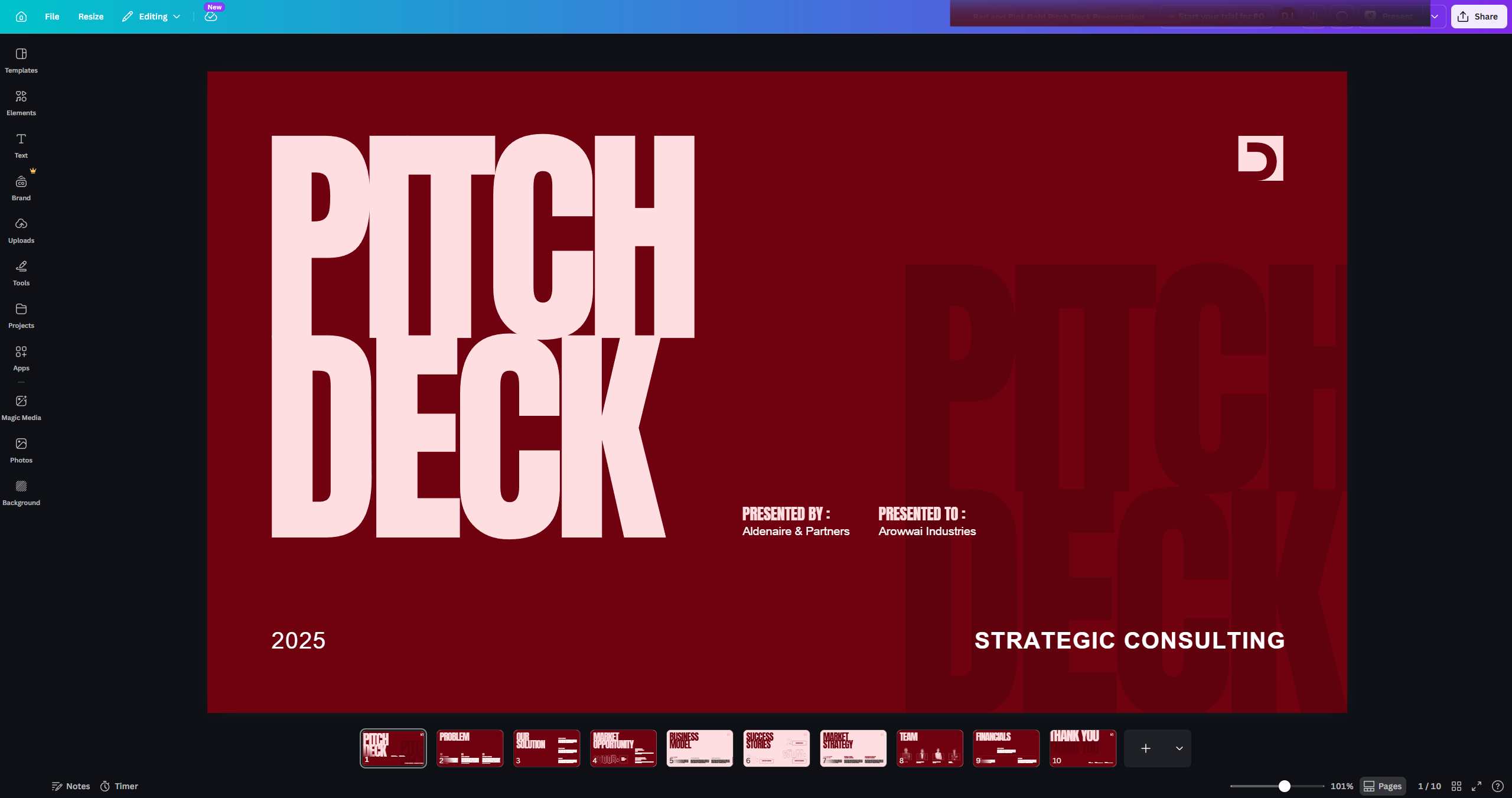
  3. Enter your sublimation paper dimensions and click Create new design.
  4. Go to the edit toolbar, click Text, and choose Add a heading.
  5. Click the font dropdown arrow to browse available fonts.
  6. Choose your preferred font from the list.
  7. Adjust the position and size of your text on the canvas.
  8. Go to the Elements menu and search for a sticker that matches your text.
  9. Click your preferred graphic to add it to your Canva design.
  10. Adjust the position and size of your graphic.
  11. Go to the Elements menu and type Background in the search bar.
  12. Select and add a background to your sublimation design.
  13. Click the graphic and select the ellipsis icon for more options.
  14. Choose Layer and select Bring to front.
  15. Click Share to begin downloading your sublimation design.
  16. Select PDF Print as the download format.
  17. Under Colour profile, select CMYK for best sublimation printing results.
  18. Click Download to save your finished sublimation design.
📌 Why this matters

Canva is one of the most accessible design tools for creating sublimation-ready artwork, making it ideal for crafters, small business owners, and print-on-demand sellers. By using Canva's custom canvas sizing, text and element tools, and CMYK PDF export, users can produce print-accurate sublimation designs without professional design software. This workflow ensures correct color output and proper layering, which are critical factors for high-quality sublimation transfers. Learning to use Canva for sublimation reduces production time and lowers the barrier to creating professional custom merchandise.
Your product deserves an interactive demo
Start free
Similar Articles
How to Use Canva Templates in Google SlidesHow to Use Canva Templates in Google Slides
Canva

How to Integrate Canva With Google Slides

Madhav Bhandari
Director of Marketing @ Storylane
Canva

How to Create a YouTube Intro

Madhav Bhandari
Director of Marketing @ Storylane
Canva

How to Import Slides from Google Slides to Canva

Madhav Bhandari
Director of Marketing @ Storylane
No items found.
Platform
Interactive Demos
Sandbox Demos
Hubs
RepX
Integrations
Solutions
Product Marketers
Growth & Demand Gen
Sales Reps & AEs
Presales & SEs
Customer Success
Product Managers
Customers
Demo Showcase
Customer Stories
Finer Demos Club
Features
Demo Signals
Personalization
Deal Intelligence
Resources
Blog
The Plot
Tutorials
Help Docs
What’s New
Demo Dundies
Company
Careers
Pricing
Partners
Contact
Trust Center
Backed by
Chrome Extension Icon
Chrome extension
Download
Desktop app
Download
Built in San Francisco Bay Area - ©2026 Storylane
Privacy PolicyTerms & Conditions
X Corp (formerly Twitter)LinkedIn
This website uses cookies to ensure you get the best experience on our website. Learn More
Got it
This website uses cookies to ensure you get the best experience on our website. Learn More
Got it