
This interactive demo was created free with Storylane in 2 minutes. Create your own demo
Start free
All Tutorials /Linear

How to Use Linear's Activity Feed

Updated on:
June 5, 2026
By:
Madhav Bhandari
Use this interactive demo to learn how to monitor and navigate Linear's Activity Feed.

Quick summary

Linear's Activity Feed gives teams a real-time, chronological stream of issue updates — including status changes, comments, assignments, and mentions — all in one place. You can filter updates, jump directly to issues, and respond with comments or reactions without leaving the feed.


Steps

  1. Open Linear and navigate to your workspace, then select 'My Issues'.
  2. Click on 'Activity' to view recent updates across your workspace.
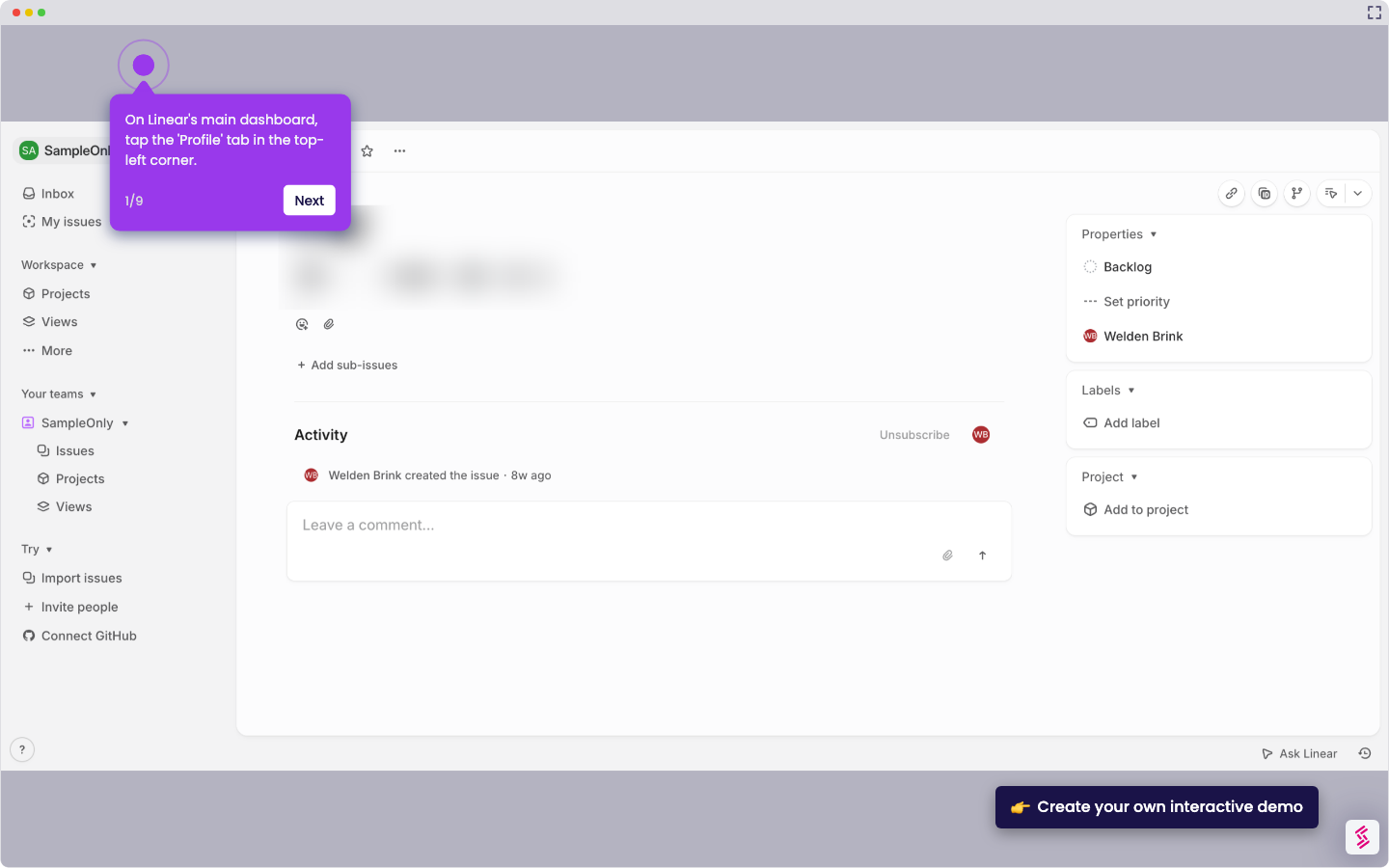
  3. Review the chronological activity stream, which displays status changes, comments, assignments, and mentions for all issues.
  4. Use the 'Filter' options to narrow the feed and show only the most relevant updates.
  5. Click on any update in the feed to jump directly to the corresponding issue.
  6. Add comments or reactions to updates directly from the Activity Feed without opening the issue separately.
📌 Why this matters

Linear's Activity Feed solves a critical problem for engineering and product teams: staying informed across dozens of active issues without context-switching. By surfacing status changes, comments, assignments, and mentions in a single chronological stream, it eliminates the need to manually check each issue for updates. The ability to filter the feed, navigate directly to issues, and respond with comments or reactions in place makes it a powerful hub for async team coordination. For fast-moving teams using Linear for project management, the Activity Feed directly reduces noise and keeps everyone aligned in real time.
Your product deserves an interactive demo
Start free
Similar Articles
Linear

How to Integrate Jira with Linear

Madhav Bhandari
Director of Marketing @ Storylane
Linear

How to Create Personal To-Do Lists in Linear

Madhav Bhandari
Director of Marketing @ Storylane
Linear

How to Set Personal Preferences in Linear

Madhav Bhandari
Director of Marketing @ Storylane
No items found.
Platform
Interactive Demos
Sandbox Demos
Hubs
RepX
Integrations
Solutions
Product Marketers
Growth & Demand Gen
Sales Reps & AEs
Presales & SEs
Customer Success
Product Managers
Customers
Demo Showcase
Customer Stories
Finer Demos Club
Features
Demo Signals
Personalization
Deal Intelligence
Resources
Blog
The Plot
Tutorials
Help Docs
What’s New
Demo Dundies
Company
Careers
Pricing
Partners
Contact
Trust Center
Backed by
Chrome Extension Icon
Chrome extension
Download
Desktop app
Download
Built in San Francisco Bay Area - ©2026 Storylane
Privacy PolicyTerms & Conditions
X Corp (formerly Twitter)LinkedIn
This website uses cookies to ensure you get the best experience on our website. Learn More
Got it
This website uses cookies to ensure you get the best experience on our website. Learn More
Got it