
This interactive demo was created free with Storylane in 2 minutes. Create your own demo
Start free
All Tutorials /Linear

How to Use Linear's Backlog View

Updated on:
June 5, 2026
By:
Madhav Bhandari
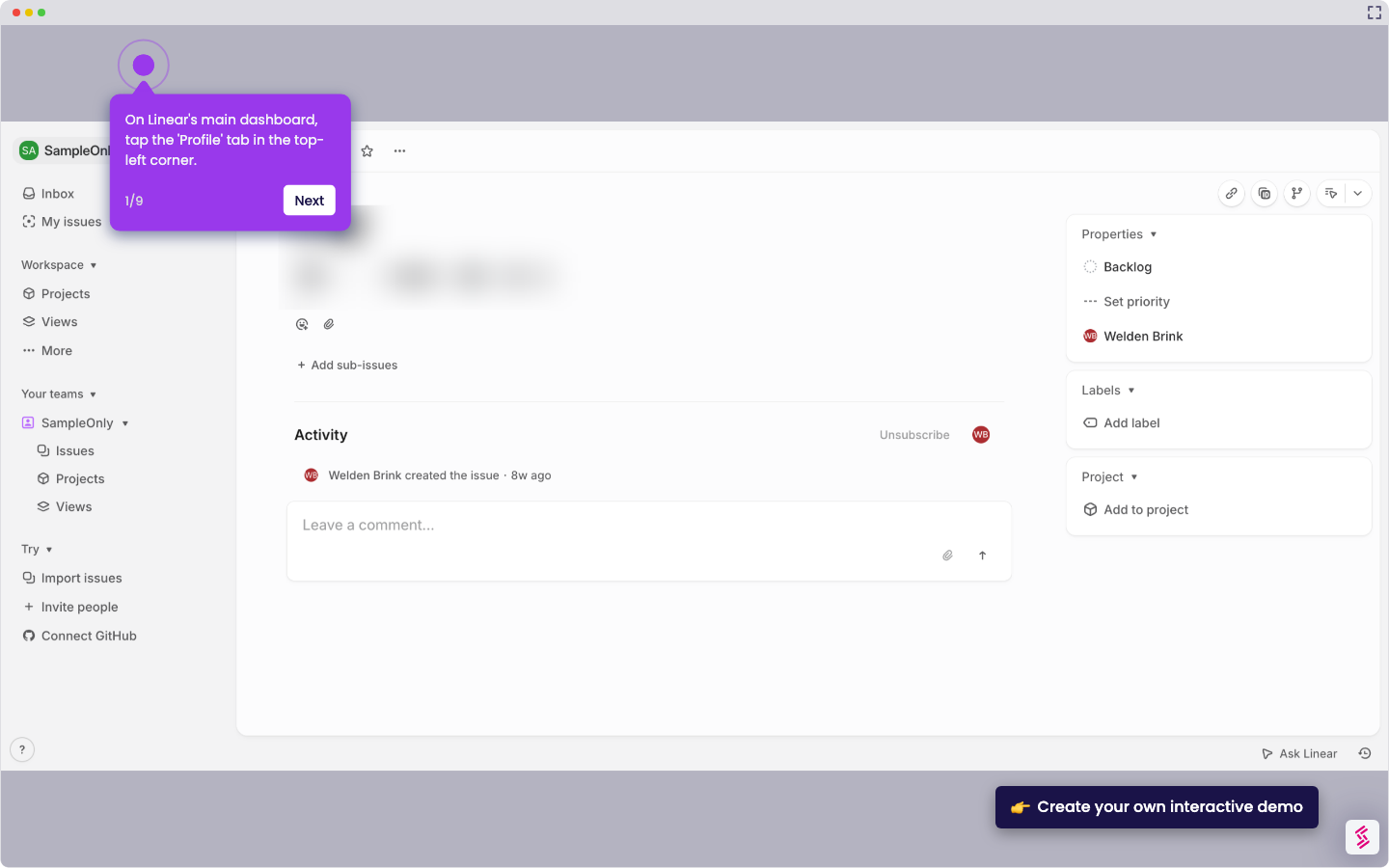
Use this interactive demo to learn how to manage unprioritized issues in Linear's Backlog view.

Quick summary

Linear's Backlog view gives teams a dedicated space to store, organize, and prioritize new issues before adding them to the active roadmap. Use filters, sorting options, and keyboard shortcuts to manage backlog items efficiently and move them into active sprints when ready.


Steps

  1. Navigate to your team's sidebar in Linear to access the Backlog view.
  2. Select 'Backlog' from the sidebar navigation.
  3. Understand that the Backlog stores new ideas and issues that haven't been prioritized or added to the active roadmap yet.
  4. Create new issues directly in the Backlog view by clicking the add icon.
  5. When ready, move issues from the Backlog to the 'Active Issues' view to begin working on them.
  6. Use filters and sorting options to organize your Backlog by labels, assignees, or due dates.
  7. Switch between 'Active Issues' and 'Backlog' views using keyboard shortcuts or the sidebar navigation.
📌 Why this matters

Linear's Backlog view solves a common problem for engineering and product teams: keeping track of ideas and issues that aren't ready for active development without losing them or cluttering the current sprint. By providing a dedicated space to store, filter, and sort unprioritized work, Linear ensures that no valuable issue falls through the cracks. Teams can create new backlog items on the fly, organize them by labels or assignees, and promote them to active issues the moment they're ready to be worked on. This structured approach to backlog management helps teams maintain a clean roadmap while preserving full visibility into future work.
Your product deserves an interactive demo
Start free
Similar Articles
Linear

How to Integrate Jira with Linear

Madhav Bhandari
Director of Marketing @ Storylane
Linear

How to Create Personal To-Do Lists in Linear

Madhav Bhandari
Director of Marketing @ Storylane
Linear

How to Set Personal Preferences in Linear

Madhav Bhandari
Director of Marketing @ Storylane
No items found.
Platform
Interactive Demos
Sandbox Demos
Hubs
RepX
Integrations
Solutions
Product Marketers
Growth & Demand Gen
Sales Reps & AEs
Presales & SEs
Customer Success
Product Managers
Customers
Demo Showcase
Customer Stories
Finer Demos Club
Features
Demo Signals
Personalization
Deal Intelligence
Resources
Blog
The Plot
Tutorials
Help Docs
What’s New
Demo Dundies
Company
Careers
Pricing
Partners
Contact
Trust Center
Backed by
Chrome Extension Icon
Chrome extension
Download
Desktop app
Download
Built in San Francisco Bay Area - ©2026 Storylane
Privacy PolicyTerms & Conditions
X Corp (formerly Twitter)LinkedIn
This website uses cookies to ensure you get the best experience on our website. Learn More
Got it
This website uses cookies to ensure you get the best experience on our website. Learn More
Got it