This interactive demo was created free with Storylane in 2 minutes. Create your own demo
Start free
All Tutorials /Freshbooks

How to Print Reports in FreshBooks

Updated on:
June 5, 2026
By:
Madhav Bhandari
Use this interactive demo to learn how to print reports in FreshBooks.

‍

‍

In this tutorial, you’ll learn how to filter and print professional reports to track your business performance.

‍

  1. In your FreshBooks dashboard, click the Reports tab in the left sidebar.
  2. Choose the specific report you want to view.
  3. Use the dropdown menus to select your Date Range, Clients, and Invoice Status.
  4. Click Apply to refresh the report with your selected filters.
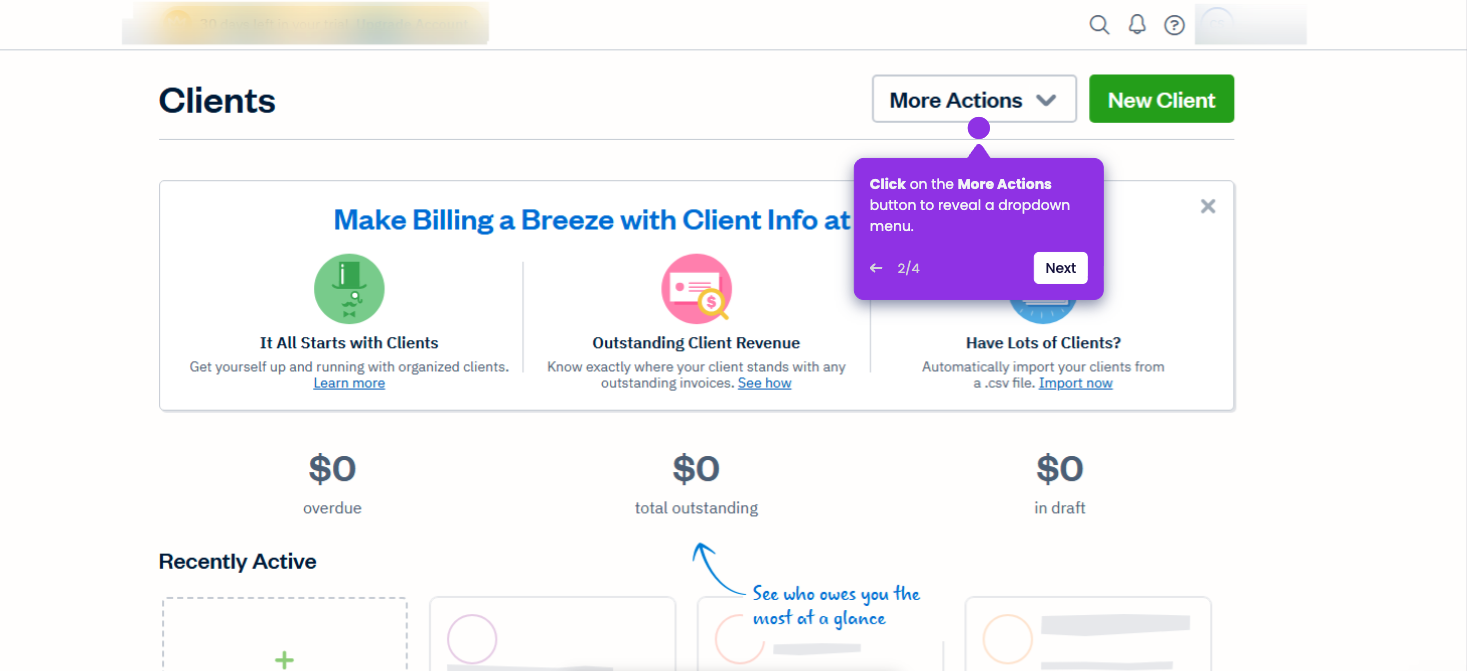
  5. Click the More Actions button at the top of the page.
  6. Select Print from the menu to open your browser’s print dialog.
📌 Why this matters

Printed reports serve as permanent records for tax filings, loan applications, and investor meetings where digital screens aren't practical. You can annotate physical copies during client discussions, hand them to your accountant, or file them for regulatory compliance.

Beyond the obvious convenience, printed reports create a backup system independent of internet connectivity or software access. When your laptop crashes during a crucial meeting or you're presenting to old-school clients who prefer tangible documents, having that physical report becomes invaluable for maintaining professional credibility.

Your product deserves an interactive demo
Start free
Similar Articles
Freshbooks

How to Export Clients from FreshBooks

Madhav Bhandari
Director of Marketing @ Storylane
Freshbooks

How to Connect Bank Accounts to FreshBooks

Madhav Bhandari
Director of Marketing @ Storylane
Freshbooks

How to Pay Bills in FreshBooks

Madhav Bhandari
Director of Marketing @ Storylane
No items found.
Platform
Interactive Demos
Sandbox Demos
Hubs
RepX
Integrations
Solutions
Product Marketers
Growth & Demand Gen
Sales Reps & AEs
Presales & SEs
Customer Success
Product Managers
Customers
Demo Showcase
Customer Stories
Finer Demos Club
Features
Demo Signals
Personalization
Deal Intelligence
Resources
Blog
The Plot
Tutorials
Help Docs
What’s New
Demo Dundies
Company
Careers
Pricing
Partners
Contact
Trust Center
Backed by
Chrome Extension Icon
Chrome extension
Download
Desktop app
Download
Built in San Francisco Bay Area - ©2026 Storylane
Privacy PolicyTerms & Conditions
X Corp (formerly Twitter)LinkedIn
This website uses cookies to ensure you get the best experience on our website. Learn More
Got it
This website uses cookies to ensure you get the best experience on our website. Learn More
Got it